Summary
MCP (Model Context Protocol) lets an AI agent read live TRBOnet data to check system status, investigate communication issues, and find configured radios and users. Access is read-only, with no access to the database or historical data.
This article covers two options: install an agent on the TRBOnet computer, or install an MCP gateway and use an AI chat in a browser from another computer or phone.
License Requirements
The MCP option must be active in the license of each application you want to connect: TRBOnet Enterprise/Plus and TRBOnet Watch.
Choose how you want to connect:
Local Agent
Install an MCP-compatible agent on the same computer as the TRBOnet server. Open the agent on that computer and ask questions about your system.
+TRBOnet Server computer-------------------------------------+
|                                                            |
| [TRBOnet] <---- MCP ----> [Local agent] <----> [User]      |
|                                                            |
+------------------------------------------------------------+
The app and its TRBOnet connection are local. The app may still use an online AI model.
Install a Local Agent
These agents are applications you download from the vendor's website and install on your PC. The following agents have been tested with the TRBOnet MCP feature:
TRBOnet Enterprise/Plus Configuration
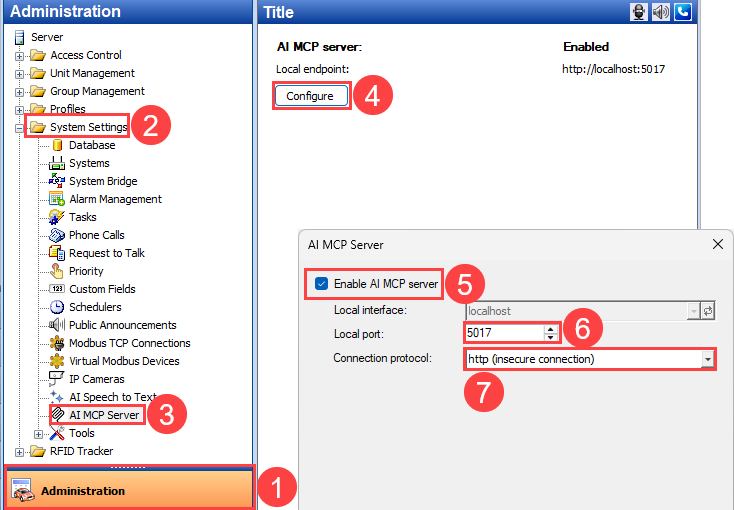
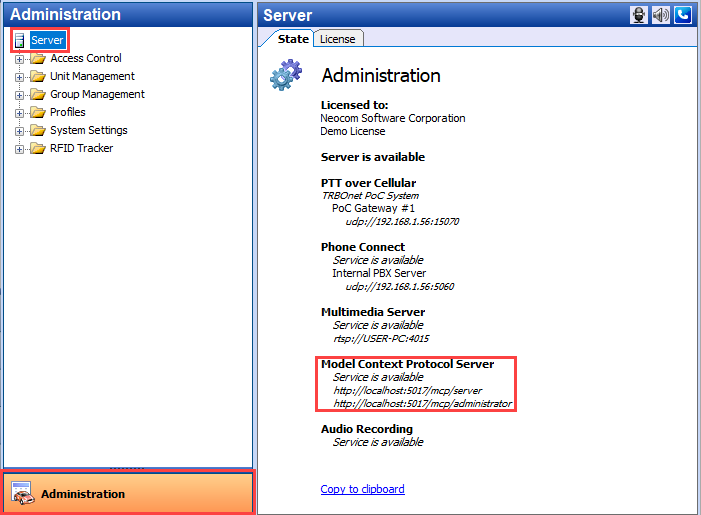
The server address comes from .
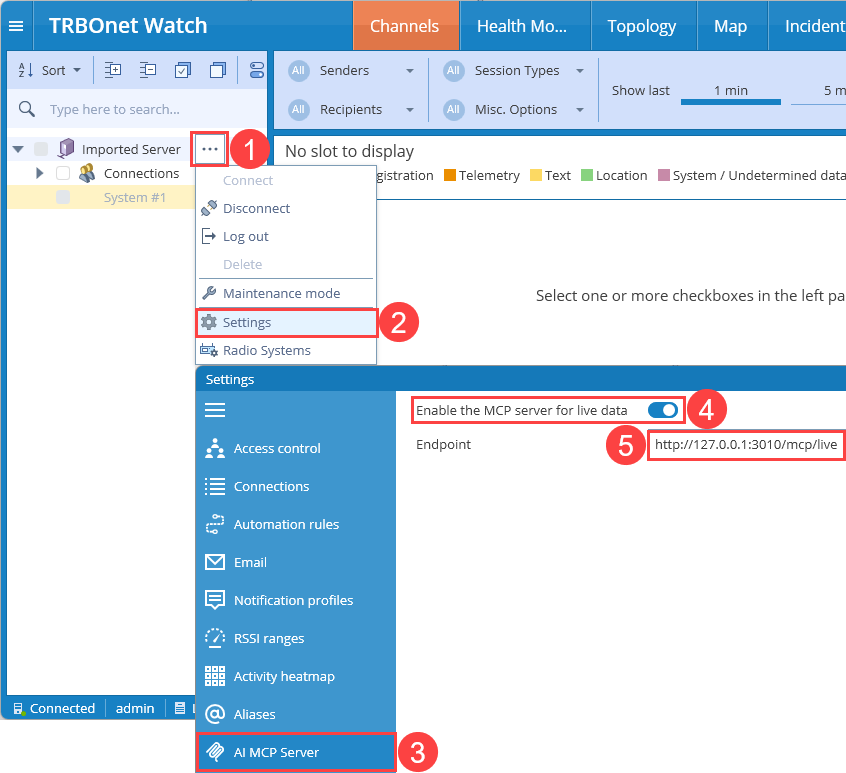
TRBOnet Watch Configuration
Restarting the TRBOnet Watch service is not required.
Connect Codex
You do not need to edit the Codex configuration manually. Send the following prompt to Codex:
Connect only the endpoints you want to use. If Codex requests a restart or approval to update its configuration, follow the prompt.
Optional Manual Configuration
You can also add the connections to %USERPROFILE%\.codex\config.toml. Replace each placeholder below with the full endpoint URL shown in the corresponding console.
[mcp_servers."TRBOnet Server"]
url = "TRBONET_SERVER_ENDPOINT_URL"

[mcp_servers."TRBOnet Administrator"]
url = "TRBONET_ADMINISTRATOR_ENDPOINT_URL"

[mcp_servers."TRBOnet Watch"]
url = "TRBONET_WATCH_ENDPOINT_URL"
For Enterprise/Plus, use the server address, available port, and protocol selected for your installation. For TRBOnet Watch, use the fixed HTTP endpoint shown in the console. See the Codex MCP documentation.
Browser Chat Through an MCP Gateway
For this option, install an MCP gateway on the TRBOnet computer instead of a local AI agent. Open an AI chat that supports remote MCP connections in a browser on another computer or phone.
The gateway is a bridge. It receives requests from the AI service, sends them to the local TRBOnet MCP endpoints, and returns the results. TRBOnet itself still accepts only local connections.
+TRBOnet computer--------------------------------------------+
|                                                            |
| [TRBOnet] <---- Local MCP ----> [MCP gateway]              |
|                                                            |
+-------------------------------------+----------------------+
                                      |
                                      |
                                      |
              +AI chat service--------+----------------------+
              | Receives requests and returns answers        |
              +-----------------------+----------------------+
                                      |
                                      |
                                      |
              +remote Browser chat----+----------------------+
              | [User] <----> [AI chat in a browser]         |
              +----------------------------------------------+
Gateway Examples
Several MCP gateway solutions are available. This example uses Supergateway and was tested with it. The gateways below are third-party tools, not TRBOnet components.
A gateway needs a reachable address. A reverse proxy or a tunnel, such as Cloudflare Tunnel, can provide the network route. A tunnel provides connectivity, while the MCP gateway forwards MCP requests.
What the Gateway Can Access
When configured to forward only the TRBOnet endpoints, the gateway does not expose personal files, the desktop, or other applications. It forwards only the tools and data available through TRBOnet MCP. Do not add file access, command execution, or desktop control tools to this connection.
The gateway is installed software and runs with its operating system account's permissions. It is not a sandbox. TRBOnet results sent through it are received by the selected AI service.
Set Up the Gateway
Open your AI chat in a browser on your remote computer or phone and send this prompt. It will guide you through creating the tunnel and connecting TRBOnet.
The chat will guide you through these steps:
If you prefer to install the components manually, use these official links:
The browser chat provides instructions and commands for you to run on the TRBOnet computer. It cannot install software there by itself. Keep that computer, the gateway, and the tunnel running while using the connection.
Instructions for Your Agent
Use these instructions with either connection option:
TRBOnet Enterprise/Plus Request Examples
Check mobile client registration and request queues using TRBOnet Server. Show any gateways with pending requests and summarize what needs investigation.
Find the radio named Warehouse using TRBOnet Administrator. Show its configured properties and current status where available.
TRBOnet Watch Request Examples
Check the current TRBOnet Watch network status. List disconnected repeaters and devices with active alarms, grouped by system.
Use TRBOnet Watch to show monitored computers with less than 20% free disk space. Include the computer name, disk, and free space.