Summary
Restricted Access to System (RAS) is an enhanced security feature. It prevents unauthorized radios from using repeaters and limits unauthorized listening to repeater transmissions.
If RAS is enabled on repeaters and radios, TRBOnet configuration files require manual updates.
Prerequisites
This procedure applies only to IP Site Connect and Conventional systems. The system must not use NAI Data or a Data over Control radio. If your system configuration is different, do not proceed.
Always back up the system before making changes. Incorrect modifications can impact system functionality.
| Product | Backup Target |
|---|---|
| Enterprise/Plus (any version) | Configuration files |
| Watch (prior to 4.0) | Configuration files |
| Watch (4.0 and newer) | Database |
Radio system configuration
1. Check that RAS is enabled in repeater codeplug.

2. Check that RAS is also enabled in radio codeplug with the same Authentication Key.

Modify Enterprise/Plus or Watch (versions prior to 4.0) configuration files
1. Stop the service.
2. Close the Server Configurator.
3. Open the server configuration file:
Enterprise:C:\ProgramData\Neocom Software\TRBOnet.Enterprise\TRBOnet.Enterprise.Server.config
using a text editor (e.g., Notepad) with Administrator rights.
4. For Watch Server configuration file:
Watch:C:\ProgramData\Neocom Software\TRBOnet.Watch\TRBOnet.Watch.Server.config
using a text editor with Administrator rights.
5. Locate the line
<ControlCRC>True</ControlCRC> and change it to <ControlCRC>False</ControlCRC>

6. Save the file.
7. Reopen the Server Configurator and restart the service.
Modify Watch 4.0 RAS handling
In version 4.0, the Watch configuration is no longer stored as a separate file editable in a text editor. The configuration is now part of the Watch SQL database.
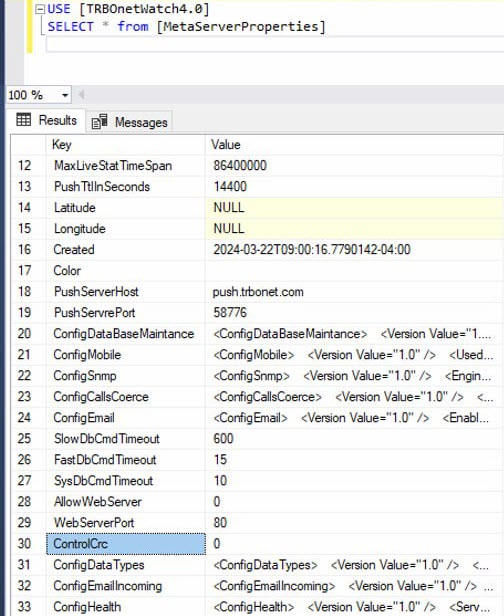
To change the RAS handling setting, update the database table as follows:
1. Stop the Watch Service.
2. Close the Watch Server Configurator.
3. Open SQL Management Studio and select the Watch database.
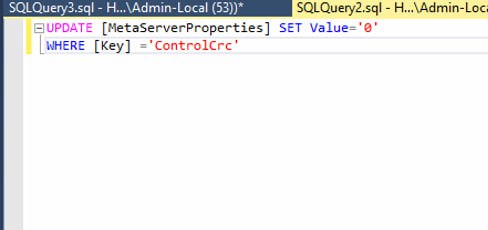
4. Run the following command:
UPDATE [MetaServerProperties] SET Value='0' WHERE [Key]='ControlCrc'
5. Restart the Watch Service.