Summary
This article describes how to pair an external Bluetooth PTT button with the Mobile Client and how to change its default action
The feature is available in Mobile Client versions 2.10 and newer.
Steps
1. Ensure Bluetooth and Location are enabled on the smartphone.
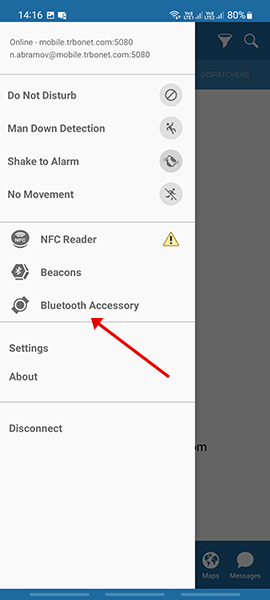
2. In the Mobile Client menu open .
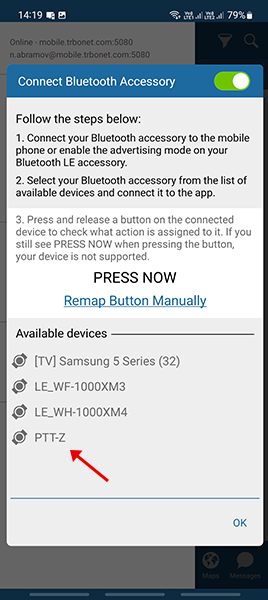
3. Activate pairing mode on the Bluetooth PTT button (example: PTT-Z).
4. Select the button from the list.
5. Wait until the status changes to .
Press and release the button several times to confirm it is detected, then tap .
Press and release the button several times to confirm it is detected, then tap .
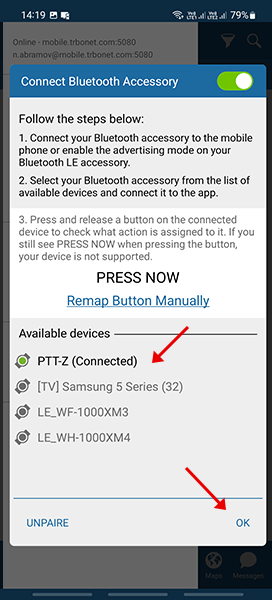
6. Verify that the button and its connection status appear in the main menu list.
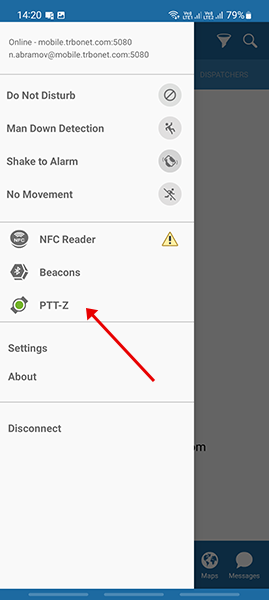
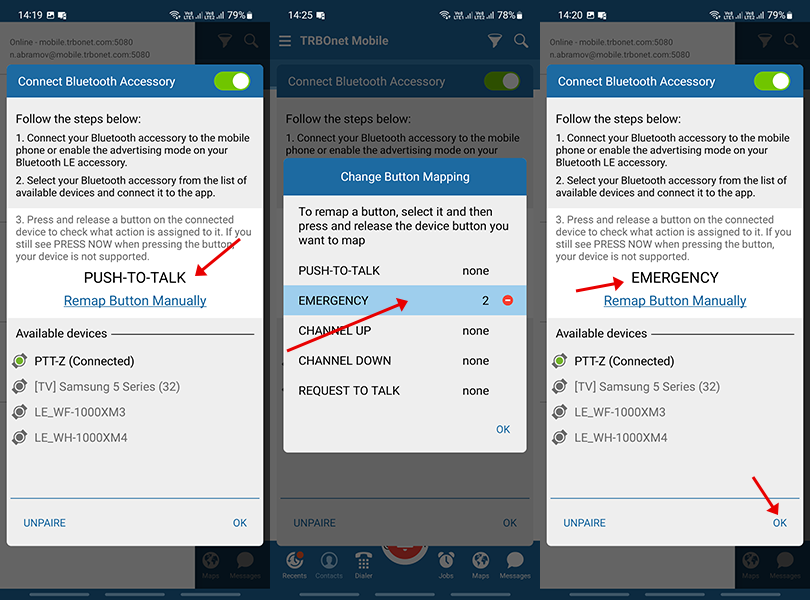
Change the Default Action
1. In the Mobile Client menu open .
2. Select .
3. Choose the required action in the pop-up menu.
Press and release the button several times to confirm detection, then tap .
Press and release the button several times to confirm detection, then tap .