Summary
This article explains how to connect and configure the Swift MD2000 Media Dock in versions 5.2.5 and later. A Motorola B1914A gooseneck mic is used as an example.
Connect to PC
1. Connect the Swift MD2000 to the computer.
2. Wait for the power indicator to turn green.
3. Wait for Windows to install the driver.
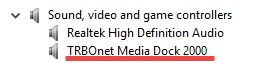
4. Open Device Manager and confirm that the device is installed.
Add to Version 5.3 and Later
1. Open the Dispatch Console.
2. Go to .
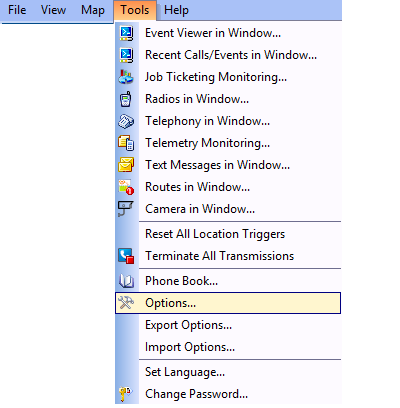
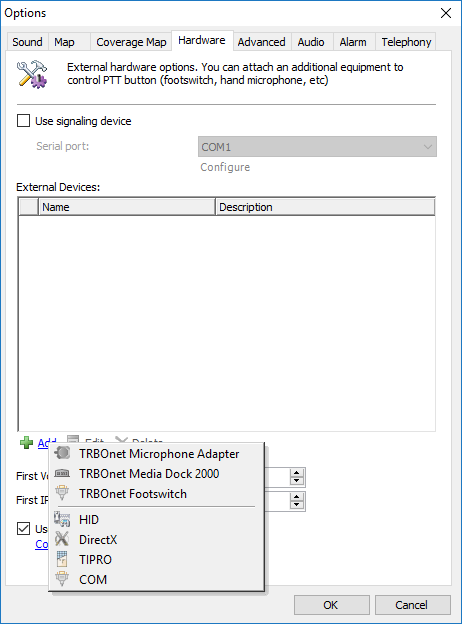
3. Click and select .
4. Select the added device and assign a name. PTT and Monitor buttons are preconfigured.
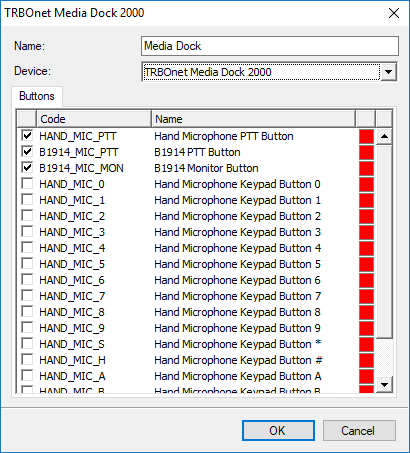
5. Go to and assign device functions.
Notes
PMMN4090A mic has low sensitivity and may provide poor audio quality. Clicking may occur in recordings. Use microphones listed in the Swift MD2000 Product Description.
The kit does not include a power supply. Use a 12 V ±10 percent stabilized power supply.
Add to Version 5.2.5
Steps
1. Open the Console.
2. Go to .
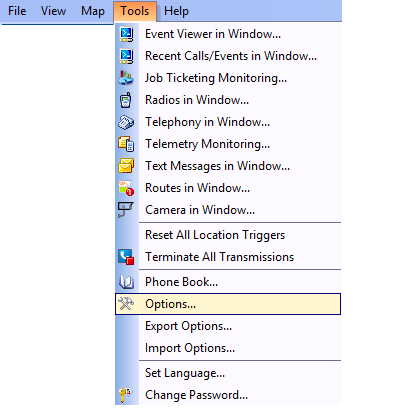
3. Click Add and select .
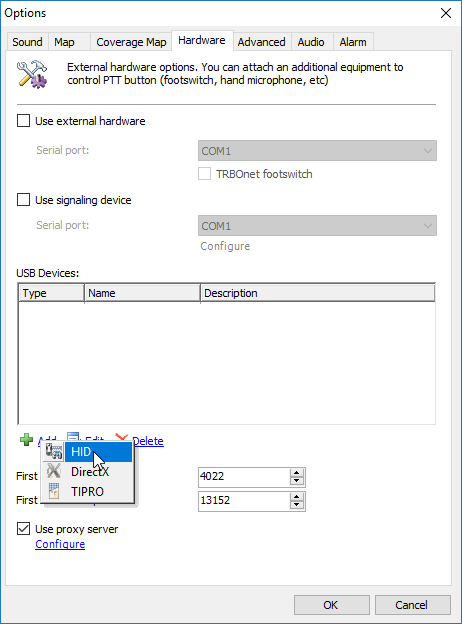
4. Add PTT and Monitor buttons manually. Assign a device name.
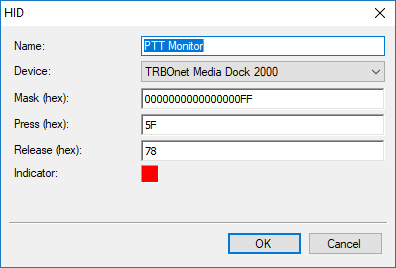
5. Use the following Mask hex values:
PTT: 00000000000000000FF
External PTT: 0000000000FF
6. Use the following Press and Release hex values:
Release: 78
7. Go to and assign device functions