Summary
This article explains how to resolve the issue when TRBOnet Enterprise/Plus and/or Watch fail to start due to the SYSTEM user lacking authorization rights for the database. It covers both manual configuration via SQL Management Studio and automated configuration using batch files.
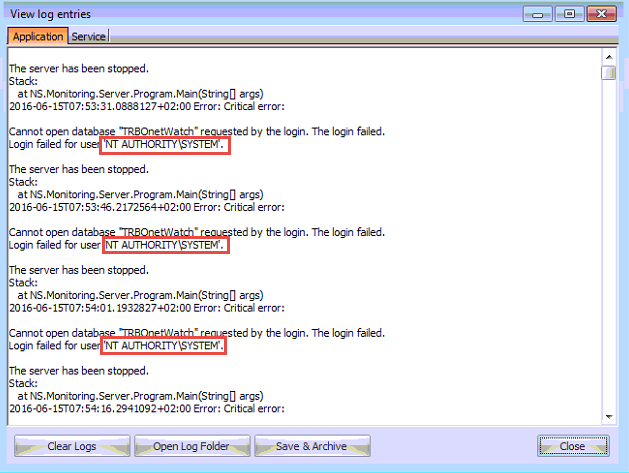
This error occurs because the SYSTEM user does not have authorization rights for the database:
Manual Configuration via SQL Management Studio
Open SQL Management Studio and connect to the SQL Server instance used by the application.
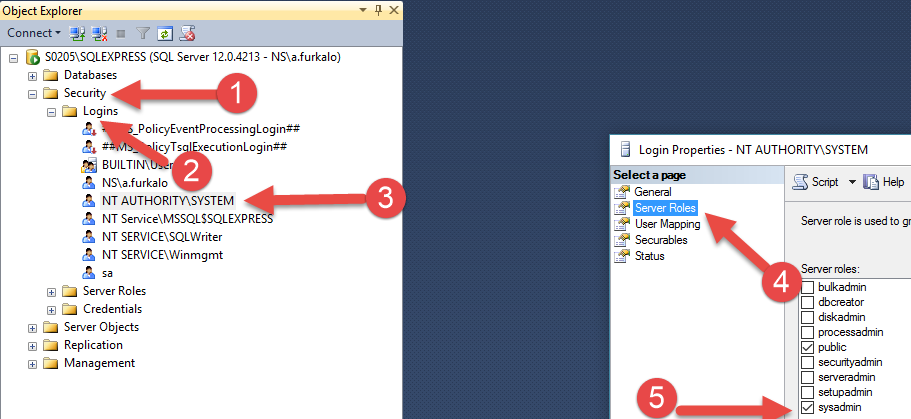
1. Navigate to
2. Open the folder
3. Double click
4. Select
5. Check the box
6. Apply changes and close
Automated Configuration Using Batch Files
You can use the provided batch files to apply the same change:
Download batch files:
If your SQL instance name is different from the default (SQLEXPRESS) or the database is on a remote server, edit the batch file and replace
'sqlexpress' with the correct instance name.
Run the batch file with privileges.