Major Release Features
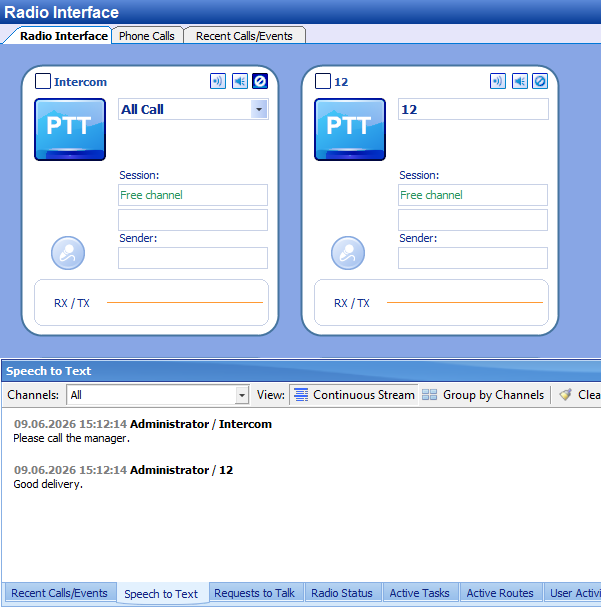
AI Speech to Text
Description: Allows converting voice transmissions into text using Artificial Intelligence, either in real-time or retrospectively in reports.
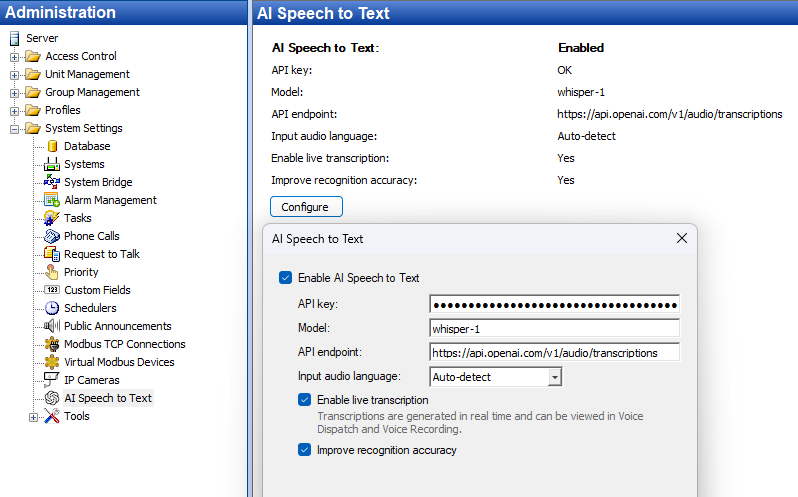
We recommend selecting a language model that best suits the language being used.
TRBOnet can connect to a commercial language model (OpenAI Whisper, via purchasing an API key) or locally (v1 API version is used).
When using a Commercial or Trial license, the demo function of the language model is not available.
New account roles and role assignment methods
Description:
Multi Factor Authentication for dispatchers
Description: The option enforces an additional authentication step for the user by entering a temporary password sent via SMS, Email, or from a linked authentication application (Google Authenticator or Microsoft Authenticator).
Other Features
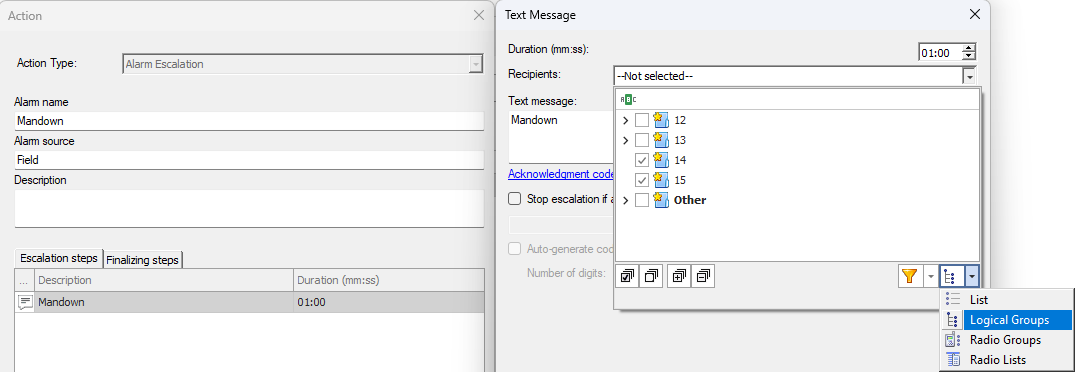
Alarm Management: Distribution of Alarm Escalation between logical groups
Description: Alarm Escalation steps can be distributed across logical groups of notification recipients.
Alarm Management: Alarm Escalation, new feature "Finalizing Steps"
Description: A mechanism for final escalation steps has been implemented, which is triggered when all escalation cycles are exhausted but no acknowledgement has been received.
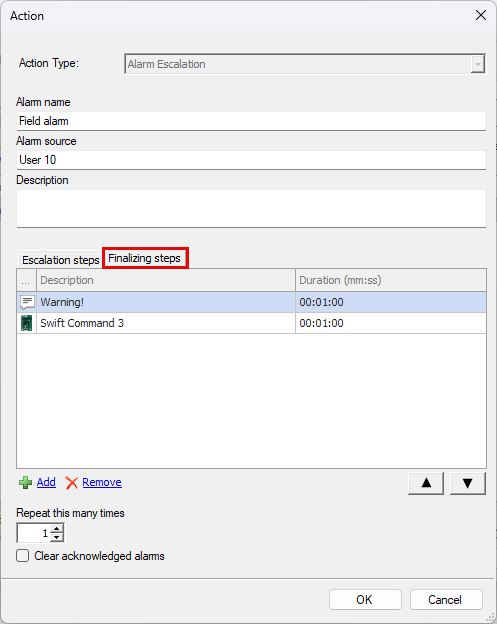
Does not provide for Acknowledgement.
Use Case: If during Alarm Escalation none of the responsible persons confirms its receipt - notify employees using available methods.
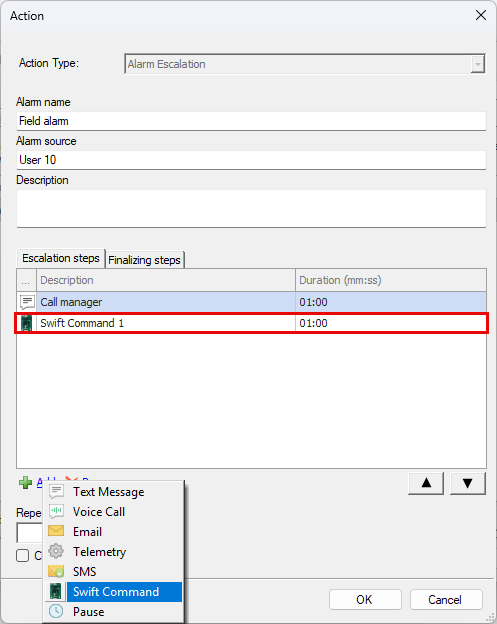
Alarm Management: Swift commands in Alarm Escalation
Description: Added the ability to use Swift commands for OB with Swift Logic firmware as Escalation steps and Finalizing steps for Alarm Escalation.
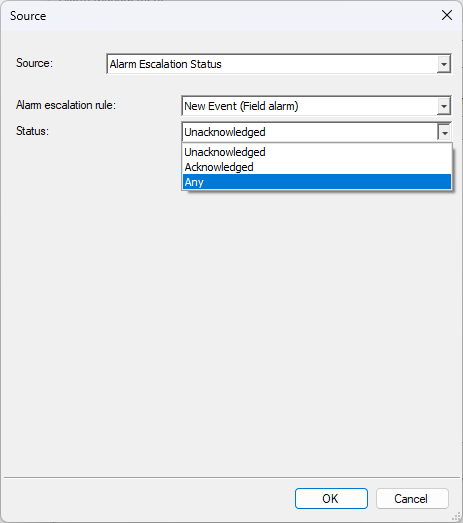
Alarm Management: Alarm Escalation as Source in Alarm Management
Description: Regardless of the result of an Alarm Escalation, its completion can be used as a Source to trigger another rule in Alarm Management.
Dispatch Console Related
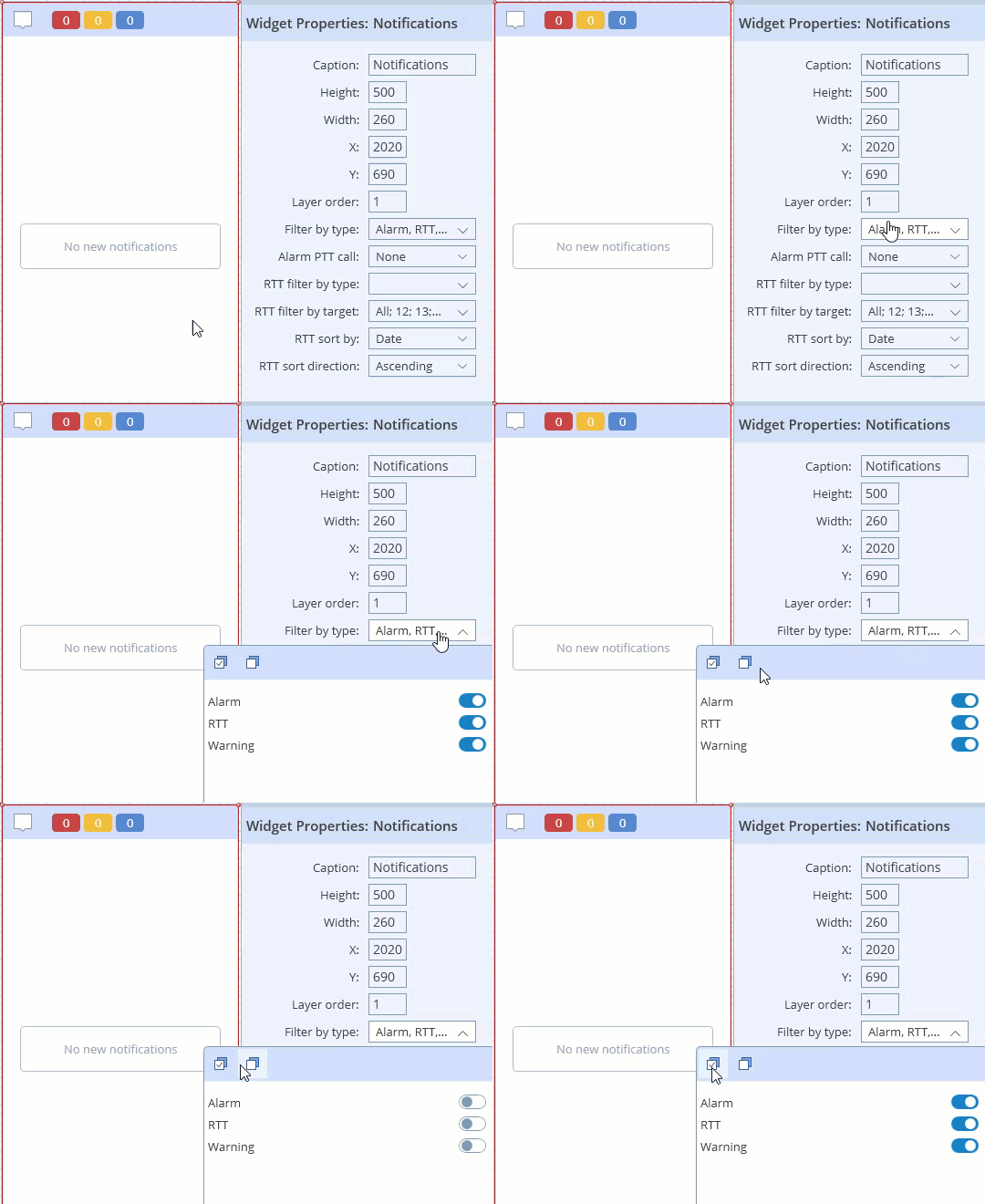
TRBOnet One: Notifications widget, Select all or Deselect all in RTT filters
Description: Ability to mass enable or disable options for the Notifications widget:
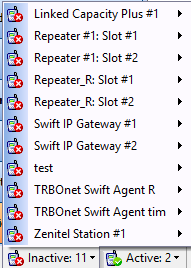
Automatic sorting of systems in the dispatch console
Description: In the lower part of the dispatch console interface where available and unavailable systems are listed, system names are now filtered automatically based on Caption in alphabetical order A – Z. By default, Caption equals System name in Server; the Caption can be changed in the console.
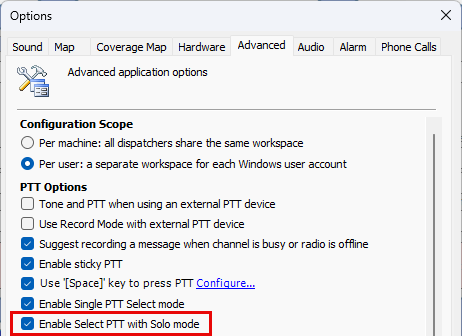
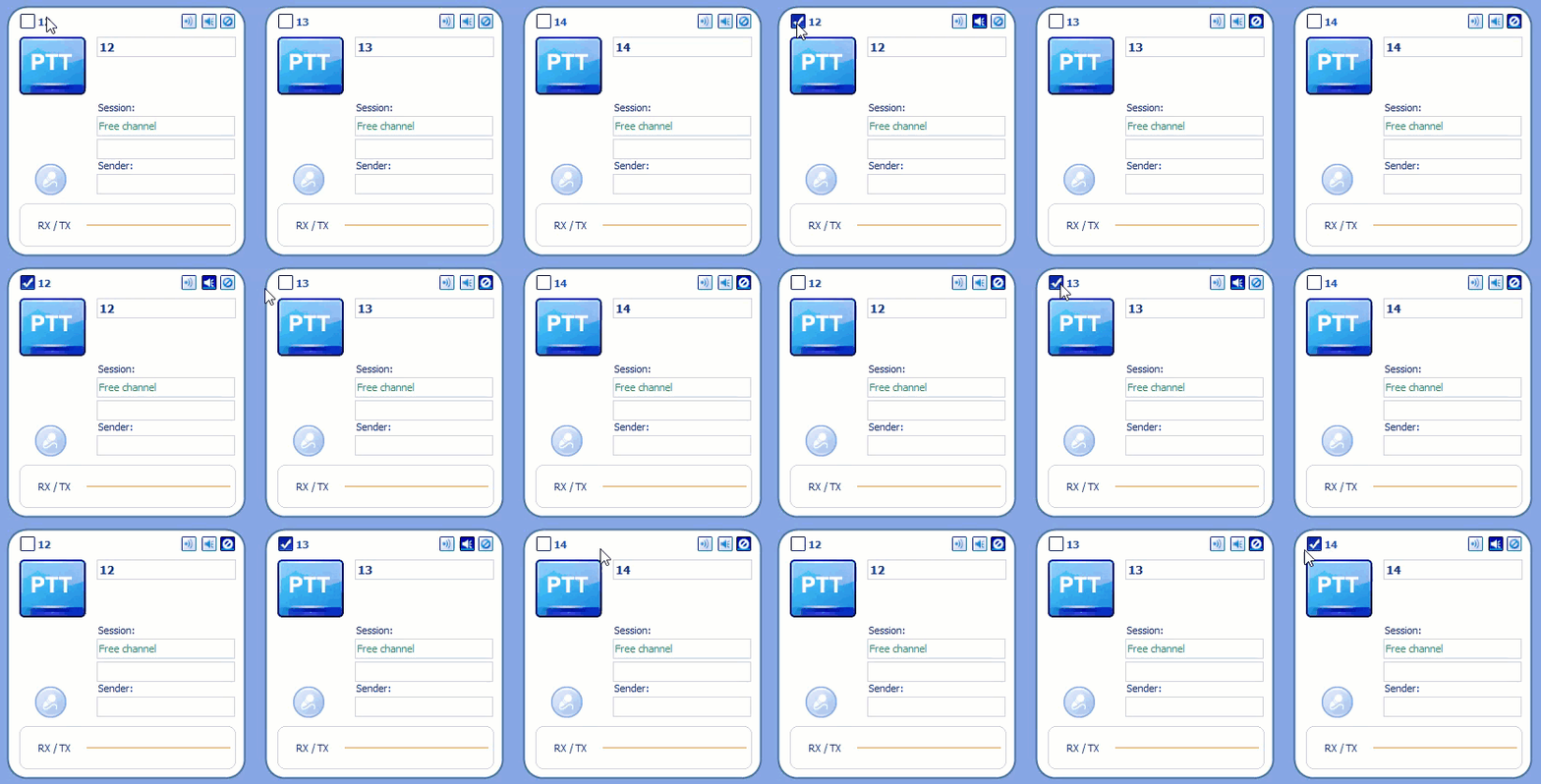
Select PTT with Solo mode
Description: Sets solo mode on the selected PTT box. Recommended to be used together with Single PTT Select mode.
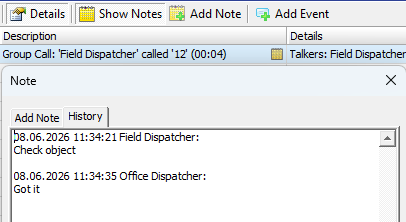
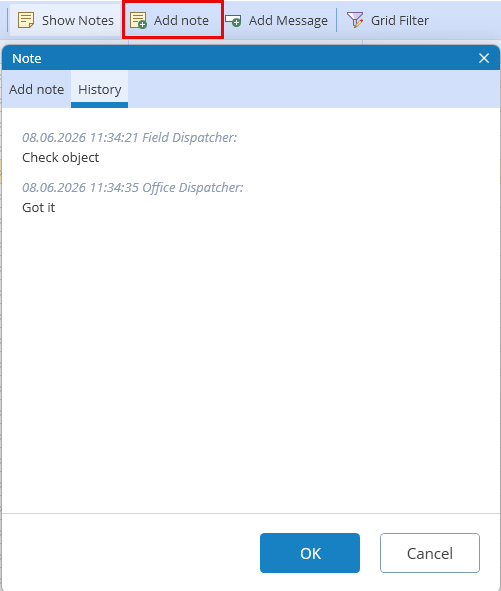
New capabilities of the Notes field
Description: A History tab has been added that contains the history of messages and the authors of the messages.
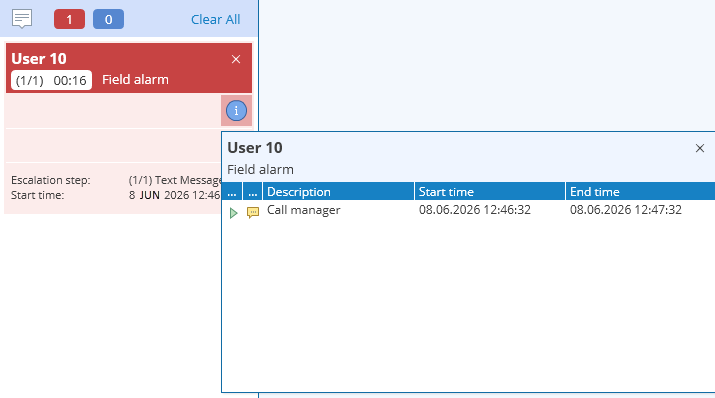
TRBOnet One Alarm escalation
Description: The Notifications Widget can display Alarm Escalation events for processing by the dispatcher.
TRBOnet One console Notes feature
Description: In TRBOnet One, Recent calls, the Add note button is available, which allows entering a Note for an event as well as viewing the history of messages and the author of the message.
Mobile Client Related
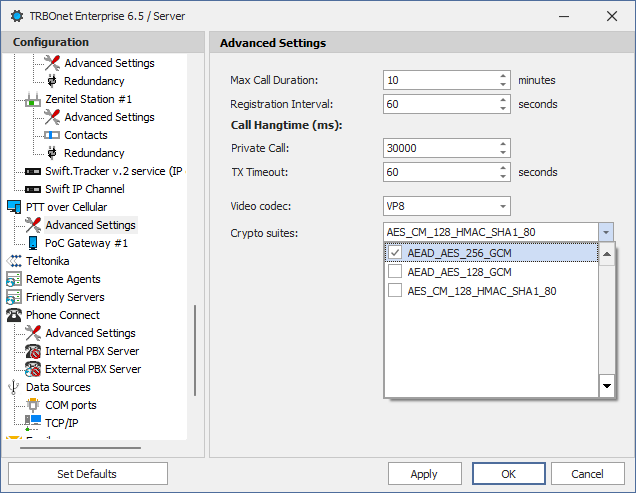
Encryption type selection for the mobile client
Description: An option to select the encryption type (for all data types (including attachments) and voice) has been added to .
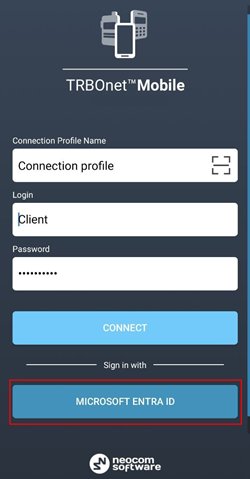
Entra ID logon and account creation for Mobile client and TRBO.SOS
Description: Ability to log in to the mobile client or TRBO.SOS via Microsoft Entra ID.
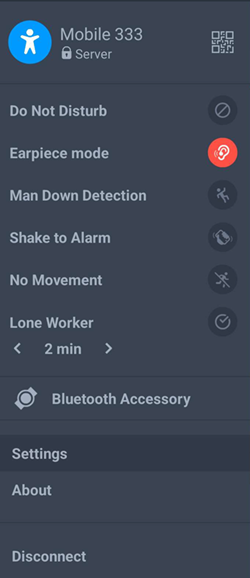
Earpiece mode in Mobile client
Description: Switching the speaker for voice output in the application to Earpiece (the speaker used during a phone call, rather than the Loudspeaker) in real time.
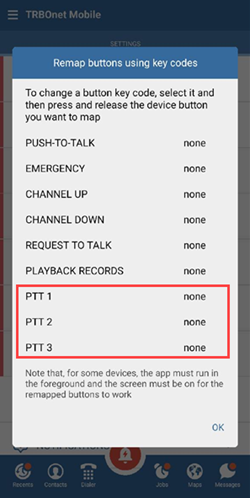
Mobile Client support of Multiple PTT Buttons devices
Description: Supports up to three additional PTT buttons that can be assigned to specific channels. This allows customers to take full advantage of devices with multiple PTT buttons, such as the INVISIO V60 II.