Summary
This article describes how to diagnose and resolve common audio quality issues in TRBOnet, such as low volume, distortion, choppy audio, or delay. Most audio problems are caused by incorrectly configured volume levels, PC audio device configurations, or network issues.
Compare Live Audio with Recorded Audio
If recordings sound clean, but live audio is distorted:
The issue is likely network jitter or packet loss.
Live audio is streamed in 60 ms packets, and delays between packets cause distortion.
Recordings are processed using algorithms that remove packet gaps, so they sound better.
The issue is likely network jitter or packet loss.
Live audio is streamed in 60 ms packets, and delays between packets cause distortion.
Recordings are processed using algorithms that remove packet gaps, so they sound better.
1. Does the same issue occur on all dispatcher PCs?
2. Do other VoIP applications sound normal on this PC?
3. Test with a USB headset or another audio device that uses a separate interface
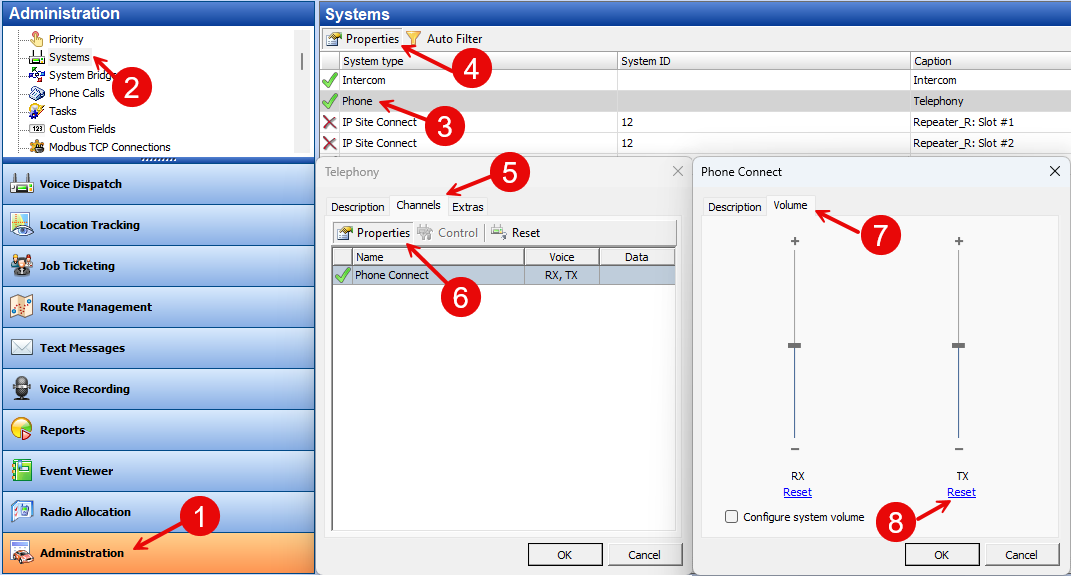
TX: Console → Radio
Radio System Level
1. Open
2. Select the system where the audio issue is observed
3. Go to:
4. Click Reset to return the TX slider to the default (middle) position
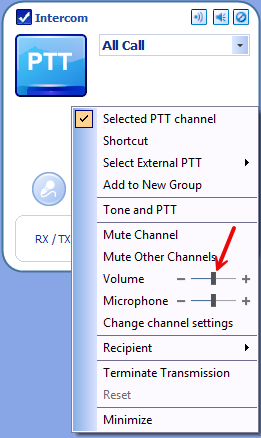
PTT Box Level (TX)
1. In the Radio Interface pane, right-click the active PTT box
2. Select
3. Ensure the slider is in the middle (default) position
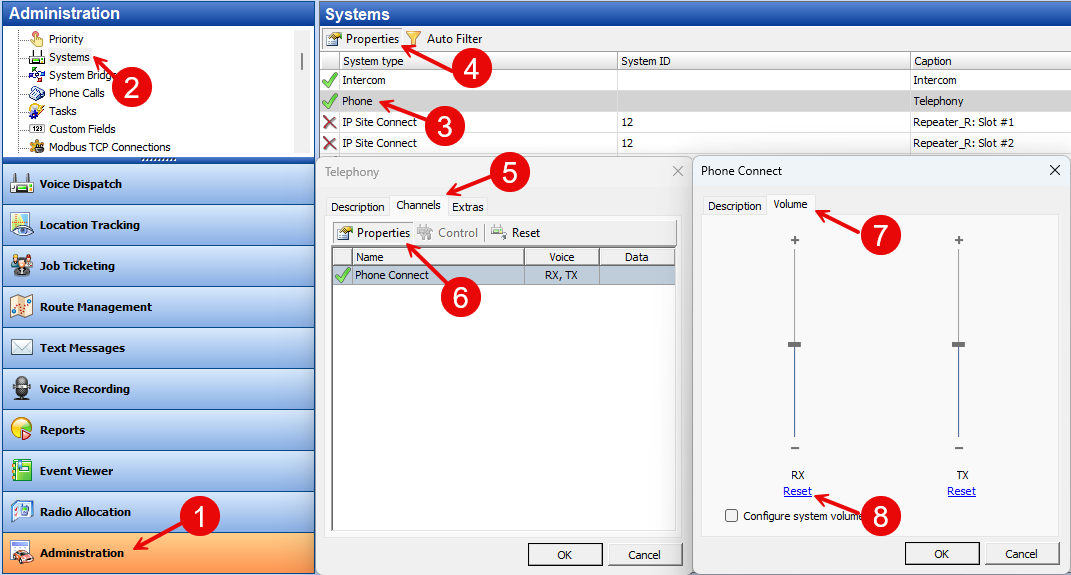
RX: Radio → Console
Radio System Level
1. Open
2. Select the system being tested
3. Go to:
4. Click Reset to return the RX slider to the default (middle) position
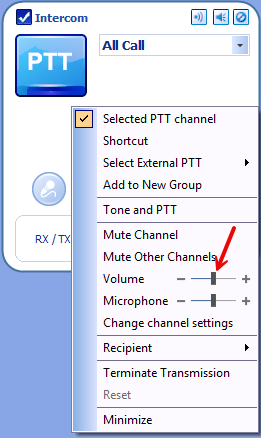
PTT Box Level (RX)
1. In the Radio Interface pane, right-click the active PTT box
2. Select
3. Ensure the slider is in the middle (default) position
System-Wide Audio Levels
1. Open to verify overall audio levels
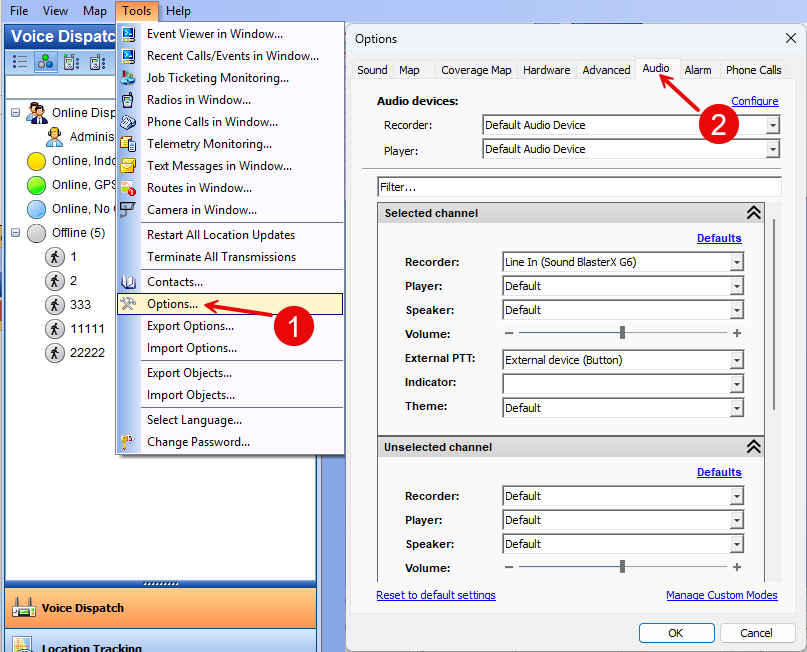
Audio Device / Driver
1. Check the audio device settings
2. Disable all enhancements
3. Verify the audio driver is up to date
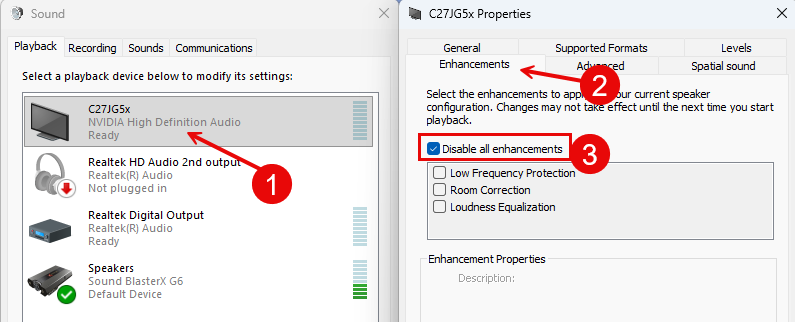
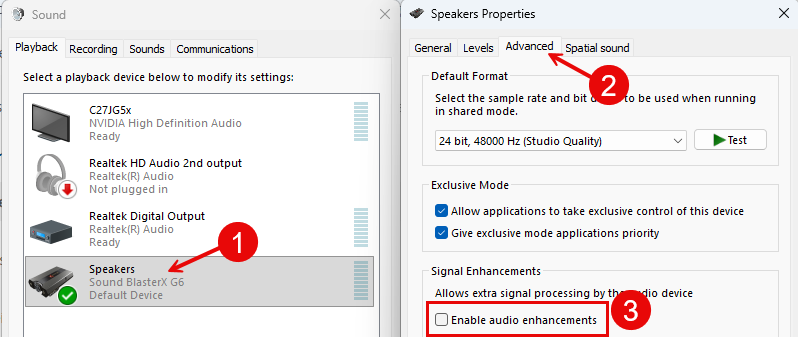
Troubleshooting Summary
| Issue Description | Possible Cause | Recommended Solution |
|---|---|---|
| Low or distorted audio when transmitting from TRBOnet | TX level too high/low | Set TX and Microphone sliders to default |
| Low or distorted audio when receiving from radios | RX level too high/low | Set RX and Volume sliders to default |
| Audio recordings sound good, but live audio is distorted | Network jitter or audio driver issue | Check network quality; update driver; test with USB audio device |
| Audio level inconsistent between Dispatchers | Local audio device settings differ | Unify audio device settings and disable all enhancements |
| Audio quality issues only on one PC | Faulty sound card or driver | Reinstall/update driver; test with external USB headset |
| Audio issues across all consoles | Radio system gain configuration issue | Verify system TX/RX levels in Radio Systems |
| Live audio delay / choppiness | High packet delay (jitter) over network | Check network quality |