Troubleshooting Swift Agent LAN Port Issues
The article was successfully sent to the email
Do not rely on this document for warranty decisions. Warranty replacement is determined by Sales and Swift Development teams.
Diagnostic procedure for Swift Agent A200m and A200 units experiencing LAN port issues. Covers model identification, network settings verification, and hardware diagnostics.
Identifying the Model of Swift Agent Device and Mode of Operation
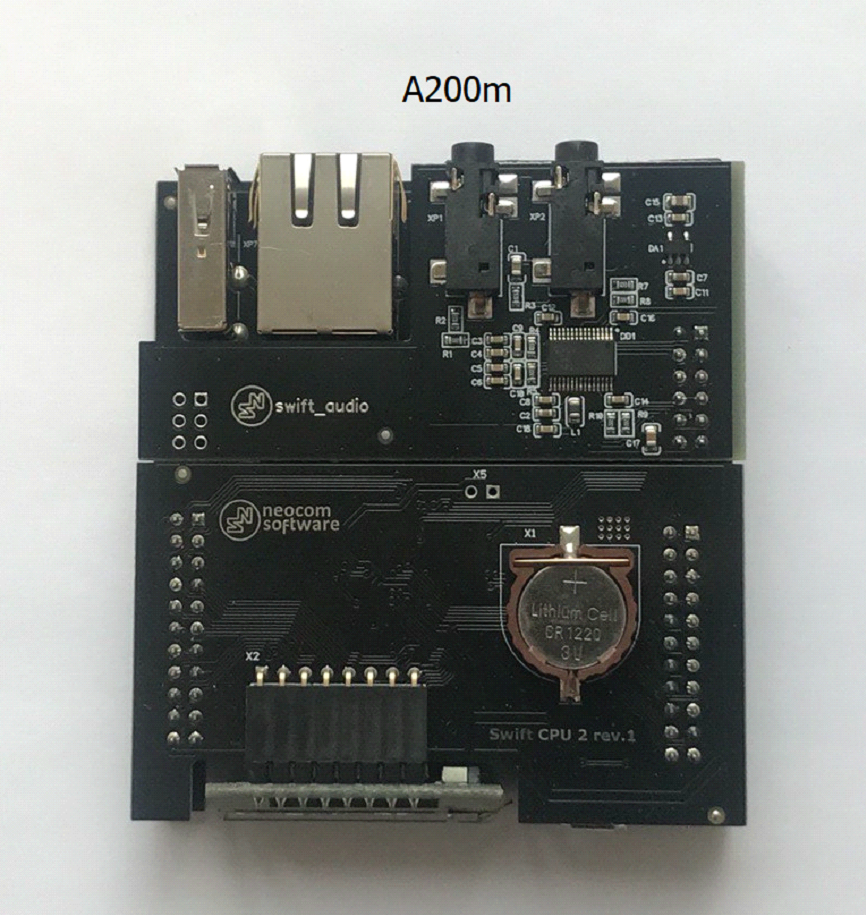
Swift Agent A200m:
- Has no SD card slot
- The serial number of A200m has a mixed alphanumeric format XXXXXXXXXXXX (12+ characters)
- Sticker with serial number is white
- Saved Swift CPS configuration has model name A200m in Device information tab
- CPU and GATE PCB color and looks:
Swift Agent A200
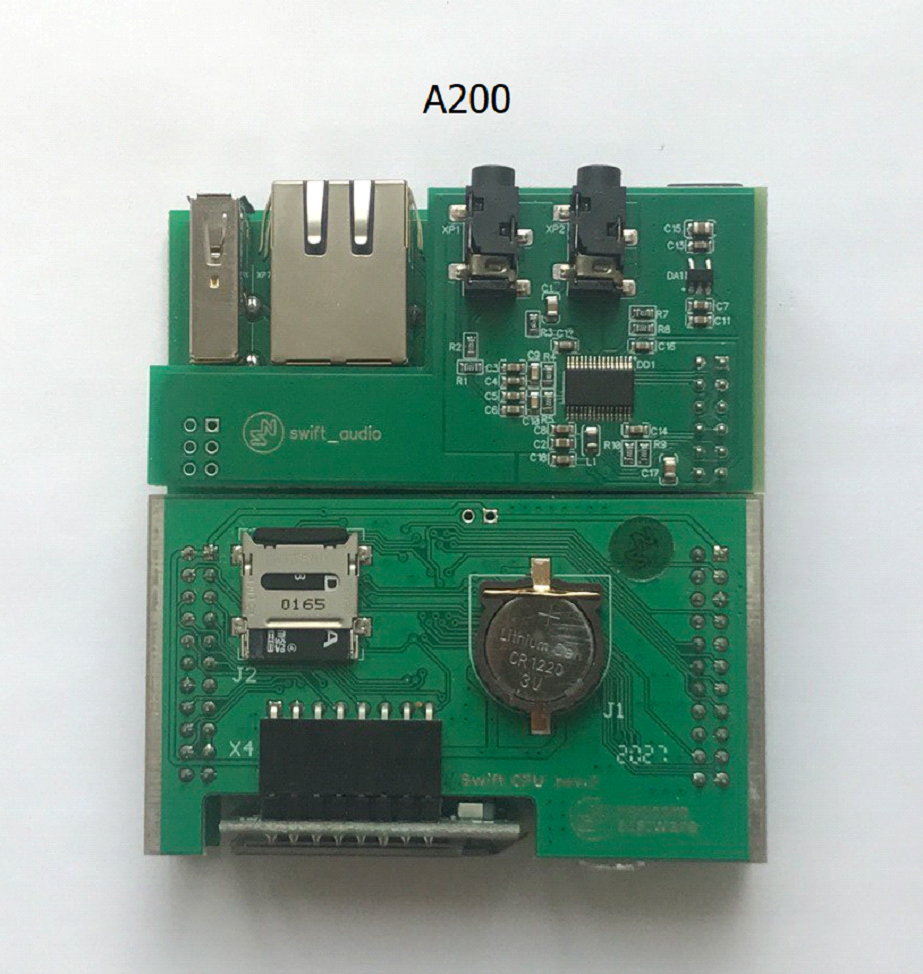
- Has an SD card slot
- The serial number of A200 device has the following format: XXAXXX (6 characters), where X are digits
- Sticker with serial number is black with white characters
- Saved Swift CPS configuration has model name A200 in Device information tab
- CPU and GATE PCB color and looks:
1. Confirm previous mode: ( or )
2. Confirm any recent changes: PSU replacement, firmware change, mode change, equipment swap
Network Settings and Equipment Check
1. Check the network settings of Swift Agent, make sure they are correct
2. Confirm another Swift Agent with the same configuration works normally
3. Connect the Swift Agent to the computer LAN port directly, change Network settings accordingly or use switch or router
4. Pay attention to the LED indicators on the Swift Agent (on the LAN connector) whether they blink
5. Try unplugging the OLED (display), the display board uses the same interface as LAN. If the Swift Agent starts working after disconnecting the display board, the OLED board is malfunction
6. Provide photos of:
- LAN connector from the contact side and its solder points
- DD3 chip on the GATE PCB

• DD3 chip photo example:

• LAN connector soldering points photo example:

• LAN connector photo example:

Diagnostics of GATE PCB Using Multimeter
1. If the OLED (display) board works normally but LAN port still does not, check the GATE PCB
2. Disassemble the Swift Agent and separate the top (CPU PCB) and bottom (GATE PCB) PCBs
3. Connect only the GATE board to external power supply via a standard 12V power connector
4. Measure the 5 Volt voltage at the converter:
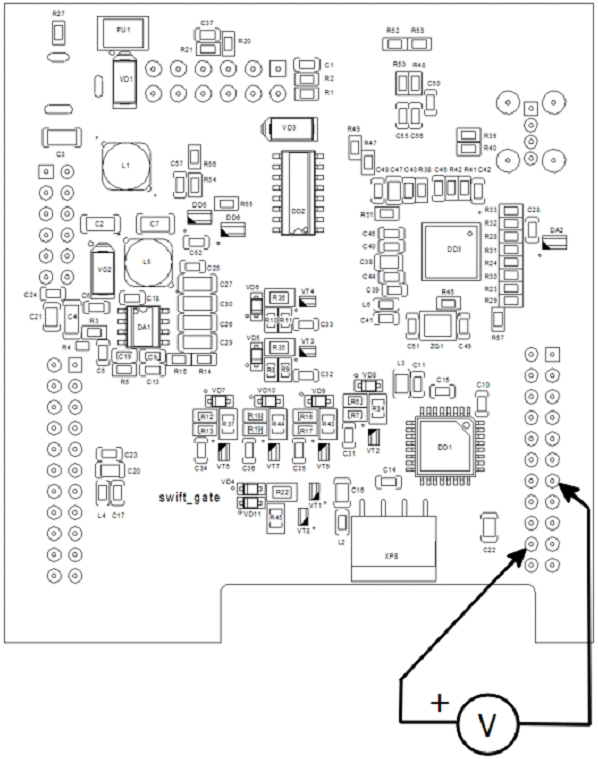
5. If there is no voltage, the converter on the PCB is malfunctioning