Troubleshooting Swift Agent Analog Audio Issues
The article was successfully sent to the email
This article describes how to troubleshoot A200m analog audio issues and outlines the procedure for preparing a Swift Agent for testing, including firmware validation, configuration loading, and functional verification of PTT, CSQ Detect, and audio paths.
Preparation of the Swift Agent for Test
1. Connect the Swift Agent to a Computer with the current Swift CPS release installed, via USB
2. Read the configuration, make sure that the firmware of the Swift Agent is of the current release version, update/change the firmware if necessary
3. Open the sample from the samples list of Swift CPS ( → )
4. Write the sample to the Swift Agent, if necessary, change the , do not change any other settings (pins, audio, etc.), leave them as
5. Disconnect the Swift Agent from a Computer
6. Connect the Swift Agent to Local Network, connect the Swift Agent to an external 12 Volt DC power supply
7. Configure the Swift Agent connection in the TRBOnet Server Configurator in the mode
Test of the PTT PIN
1. Press PTT box of the Swift Agent in the TRBOnet console
2. Make sure that the symbol appears on the Swift Agent's display:

3. Use the multimeter in measurement mode , apply probes to the Swift Agent's and :
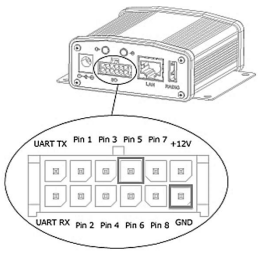
4. When connected, a pull-up voltage of about 3 - 5 Volts will be displayed (as per default configuration):

5. If TX status is shown on the Swift Agent's display when Swift Agent PTT pressed in the TRBOnet Dispatch console and the voltage changes from 3 - 5 Volts to 0.5 - 1 Volt, this means the PTT pin is working correctly
Test of the CSQ Detect PIN
1. Using tweezers or wire or metal clip etc. shorten the Swift Agent's and :
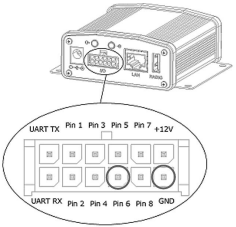
2. Make sure that the symbol appears on the Swift Agent's display:

3. If RX status is shown when PINs are shortened, this means the CSQ pin works correctly
4. Swift Agent PTT box in the TRBOnet Dispatch console should change to (blue)
Test of the Audio Output
1. Use Active speaker system, make sure it works (connect it to a sound source: a Computer or a Smartphone)
2. Connect Active speaker system to the Swift Agent's :
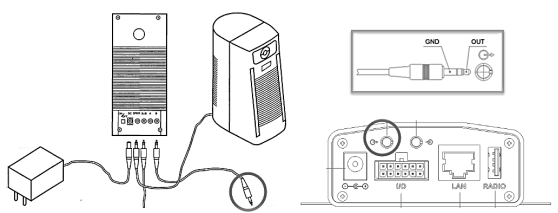
3. Press Swift Agent PTT box in the TRBOnet Dispatch console, say something into the console microphone, check the sound output from the Speakers
Test of the Audio Input
1. Turn off the Swift Agent's power
2. Connect a test audio source (Computer or Smartphone) or to the Swift Agent's
• You can use the audio cable from the Swift Agent kit or similar:
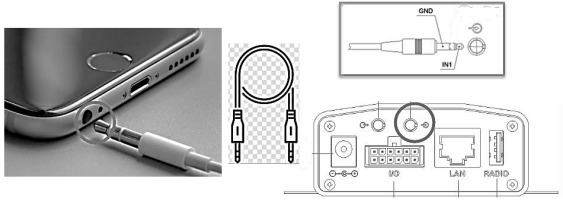
3. Set the test audio source volume level to (50-70%)
4. Turn on the test sound source to play a recording of a voice message or music
5. Turn on the Swift Agent's power
6. Using tweezers or wire or metal clip etc. shorten the Swift Agent and :
7. Check that the symbol appears on the Swift Agent's display:
8. Check that the Swift Agent PTT box turned blue () and sound from the test source is heard