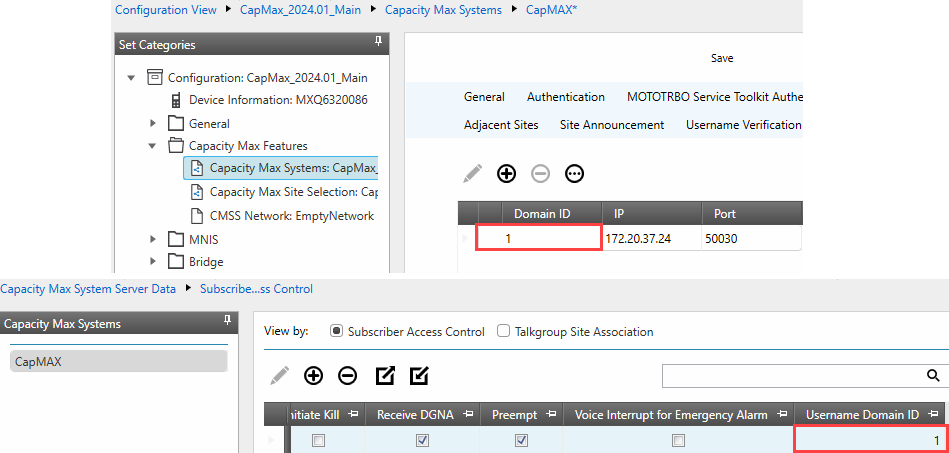
This feature allows users to operate any radio under their own identity. It is useful for shift-based environments: a user takes any radio, enters their credentials, and signs in. The dispatcher then sees the user's name instead of the radio ID.
Radio Configuration
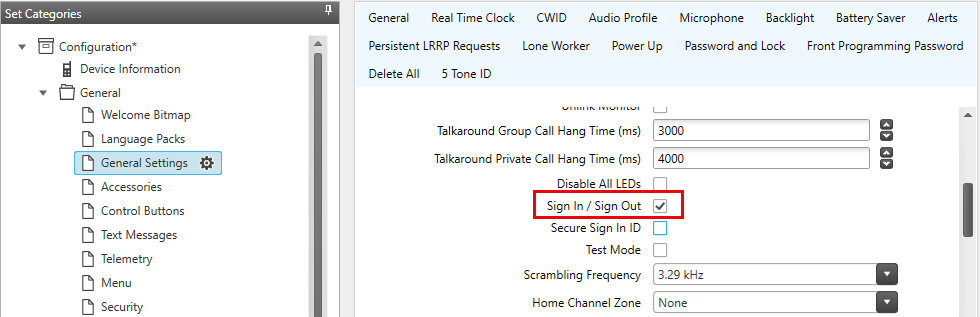
In the radio codeplug:
- Open
- Enable
Console Configuration
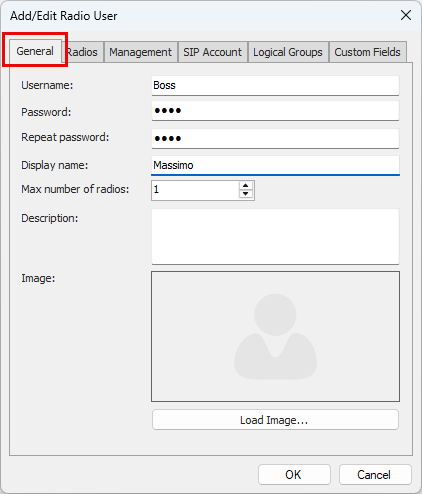
- Go to
- Click to create a user
Set , , and (shown in the console)
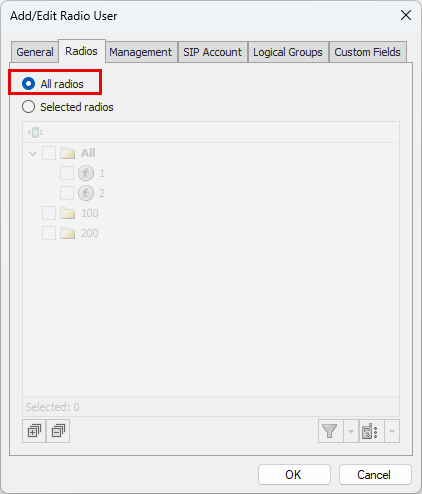
Specify which radios the user can take, or enable
If is enabled, the radio will lock after sign-out
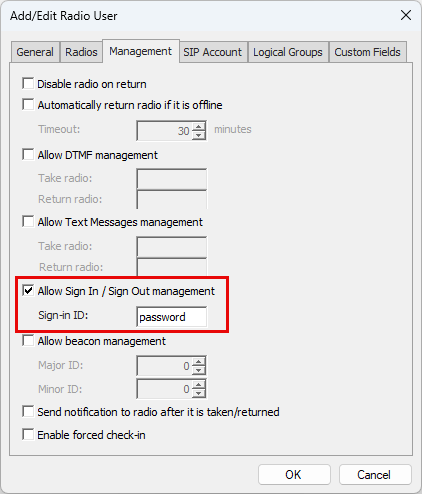
Enable
Set the (must match the password from General tab)
Optional: enable to send a TMS message on sign-in/out
Capacity Max Additional Settings
| Firmware Version | System Mode Support | Notes |
|---|---|---|
| Prior to M2022.01 | Sign In/Out requires Capacity Max Advantage | Standard (Open) mode not supported |
| M2022.01 and newer | Sign In/Out supported in Open mode | Only radios must be upgraded; other system components do not require upgrade |
Set , , and of the 3rd-party authentication server
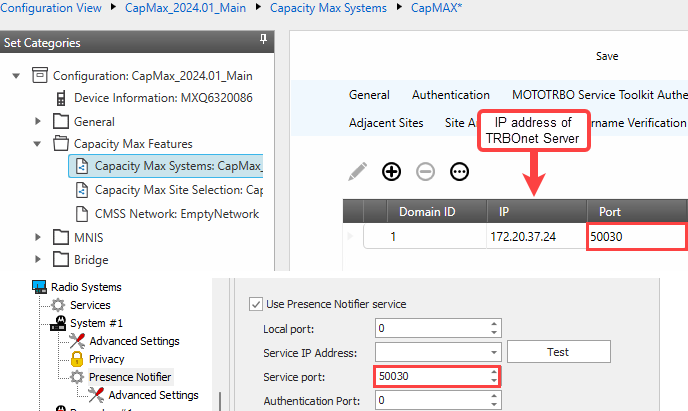
Set the for each subscriber record to route sign-in/out data