Mic Adapter M001/M002 Installation and Configuration Guide
The article was successfully sent to the email
This guide describes identification and configuration of mic adapters M002 and M001 on TRBOnet Enterprise and Plus. It also covers driver installation and hardware settings.
Identifying M002 vs M001
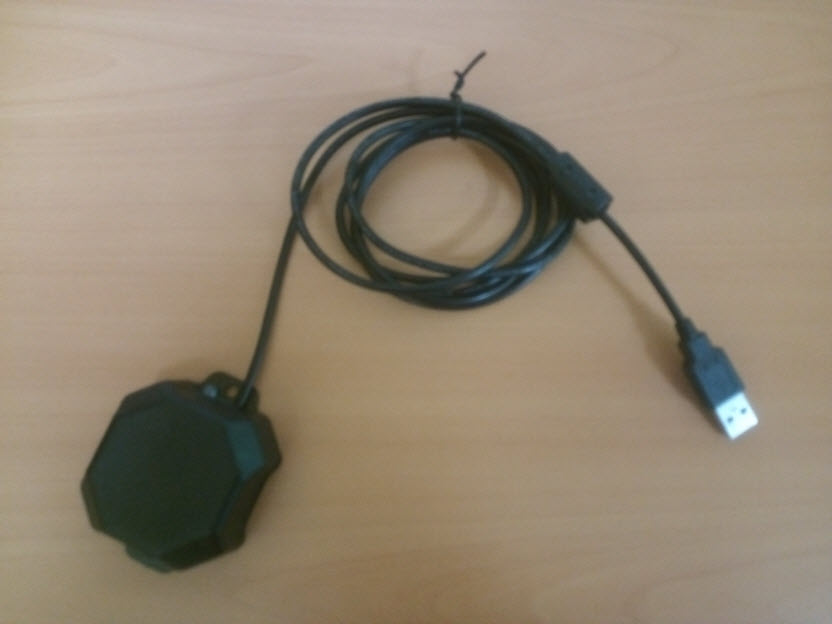
M002
• M002 uses a single USB connector for both voice and PTT.
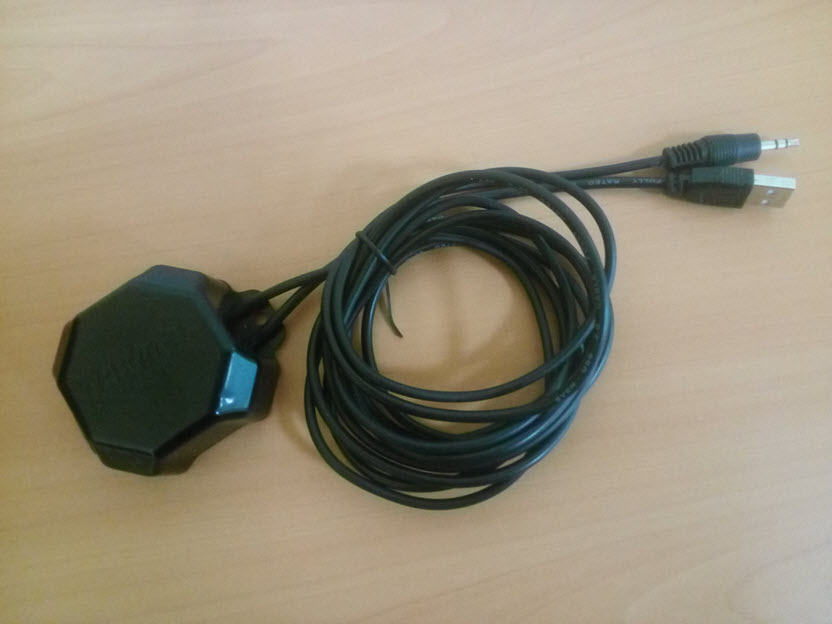
M001
• M001 uses an analog audio jack for voice and a USB connector for PTT.
M002 Installation and TRBOnet Configuration
TRBOnet Enterprise 4.8.1.1028 and later or TRBOnet Plus 5.0.0.1028 and later is required. Earlier versions do not support HID mode for PTT USB device.
Steps
1. Connect the USB connector to the PC USB port.
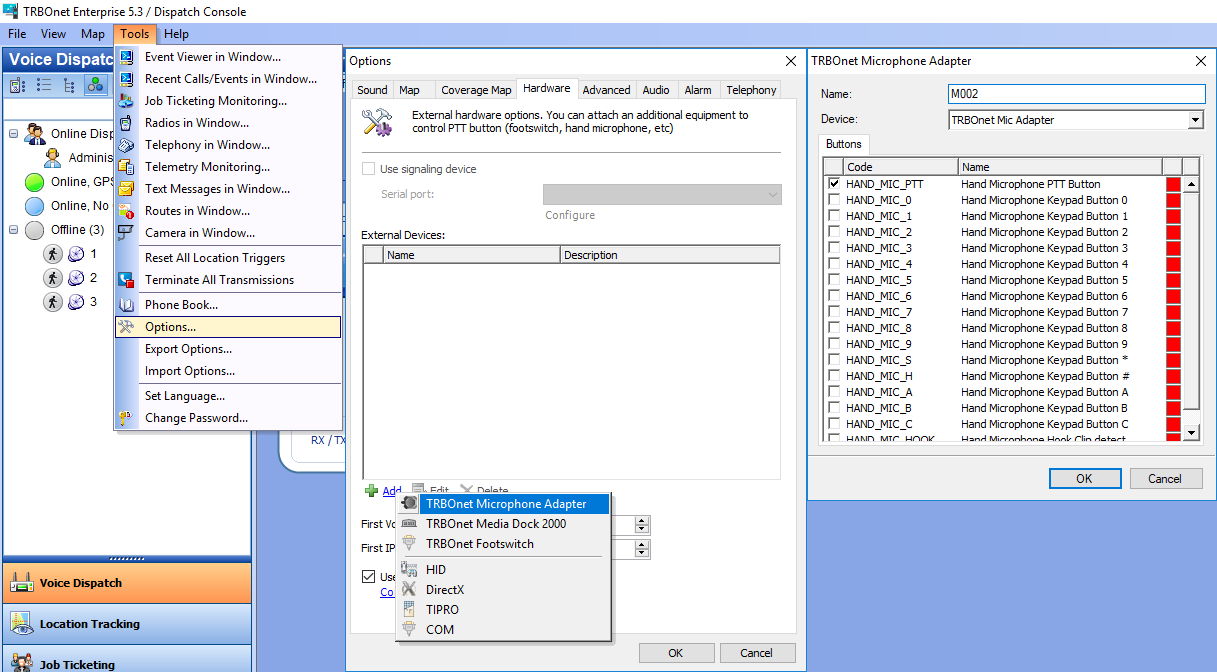
2. In TRBOnet 5.3 and later open → → → → and select .
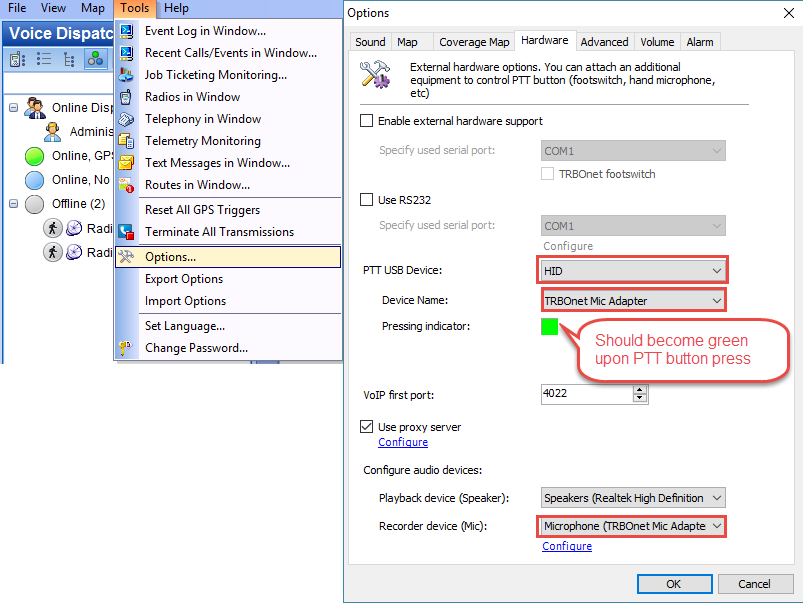
3. In earlier TRBOnet versions open → → :
- Set to .
- Set to .
- Press to verify the device. The indicator must turn green.
- Set to .
Notes
• UsbHid.zip is a tool for HID testing of the M002 adapter.
• RNM5068A desktop microphones must be switched to continuous microphone mode for use with the Swift M002 adapter. See the guide.
M001 Installation and TRBOnet Configuration
Steps
1. Connect the USB connector to the PC USB port and connect the audio jack to the PC microphone input.
2. Download the driver.
3. Extract the ZIP file and install the driver.
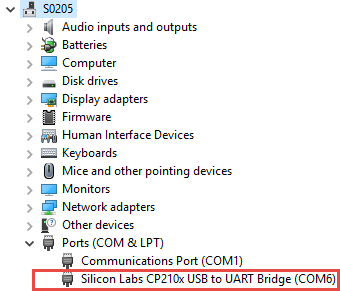
4. Open Device Manager and identify the COM port assigned to the M001 adapter.
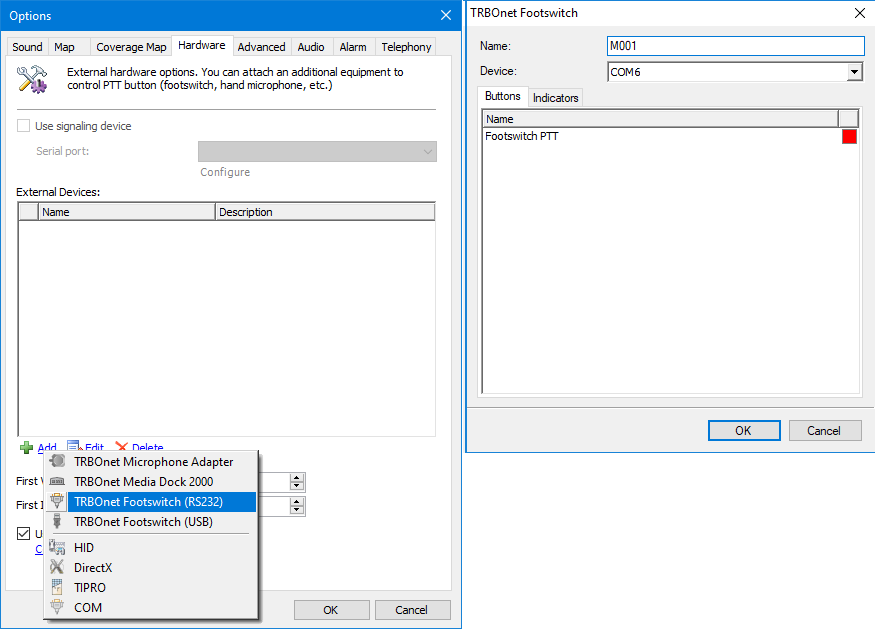
5. In TRBOnet 5.6 open → → → → and select the adapter COM port.
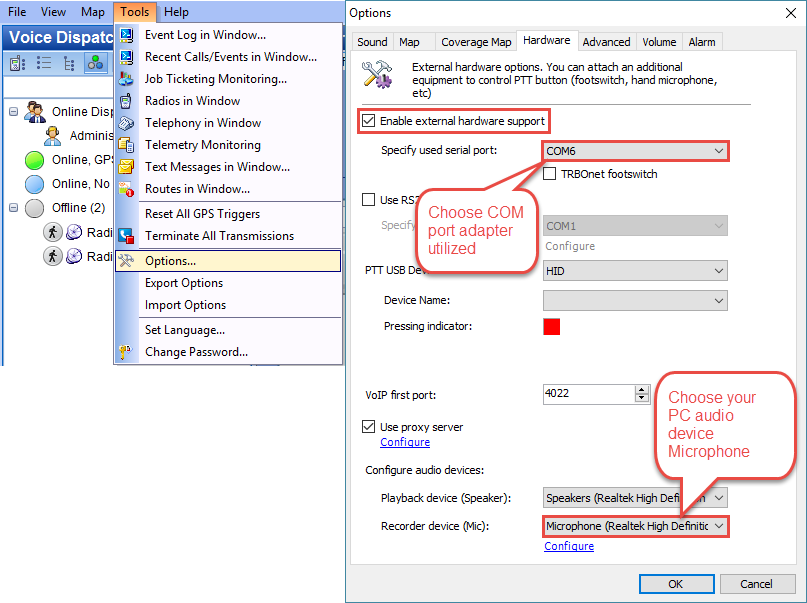
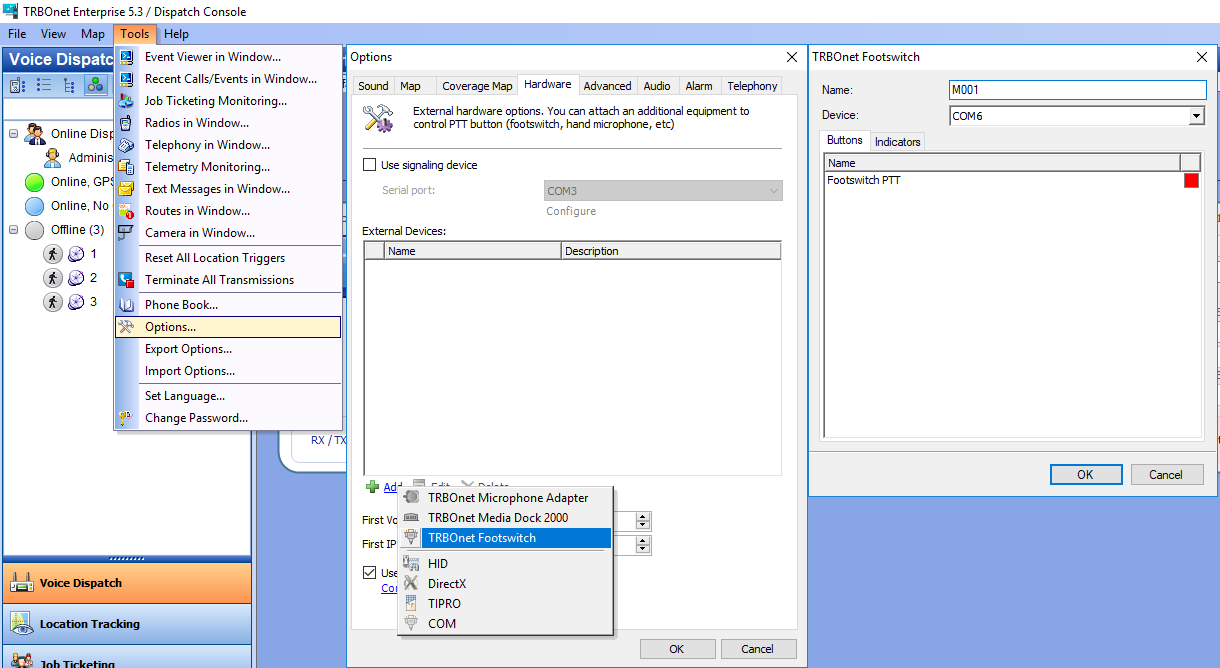
6. In TRBOnet 5.3 to 5.5 open → → → → and select the emulated COM port.
7. In earlier TRBOnet versions open → → , enable , set the COM port used by the adapter, and set to the audio device connected to the M001 audio jack.