You can download map tiles on a PC with Internet access and then distribute the map cache to Dispatch Consoles running on PCs without Internet access.
Existing Cache
If the Console has already displayed the required map area the corresponding tiles are already stored locally and do not need to be downloaded again.
Download Map Tiles
1. From the Dispatch Console open .
2. Go to → .
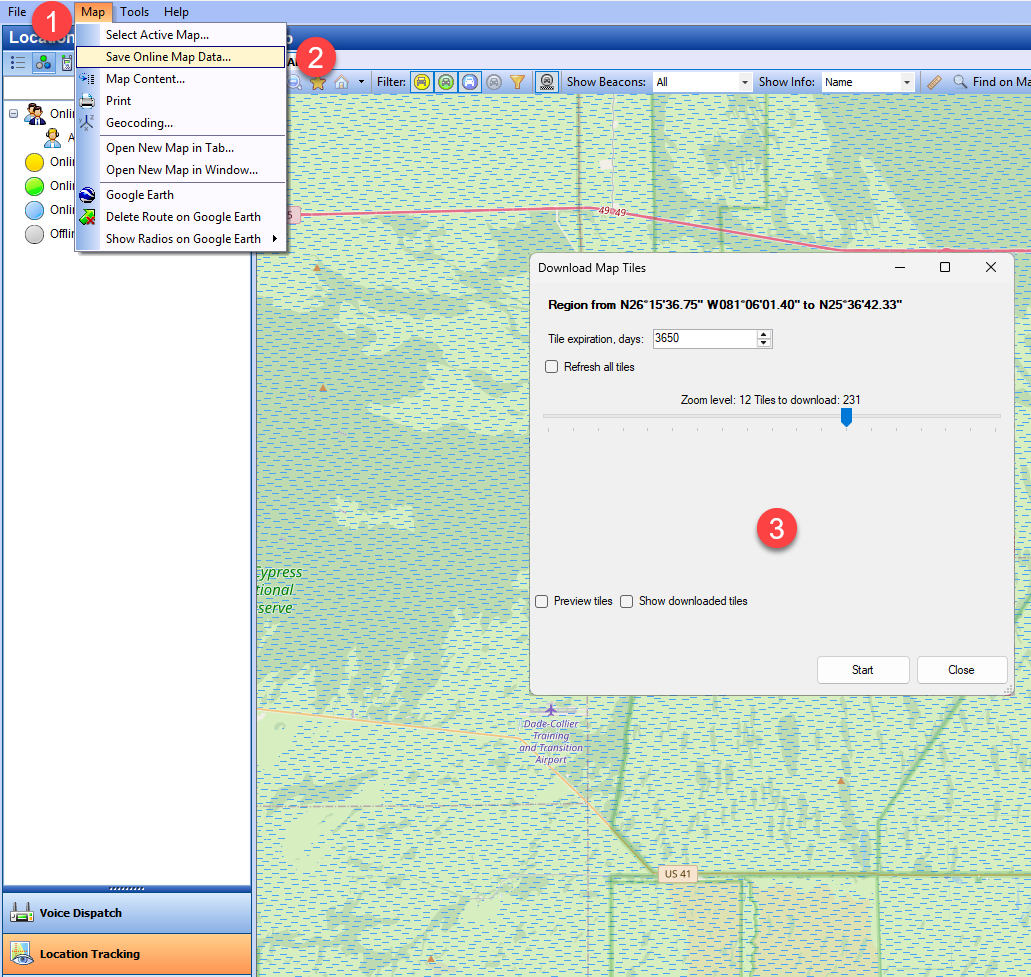
3. Select the zoom level you need and click .
When selecting a higher zoom level all lower zoom levels will be downloaded automatically.
Locate and Transfer Tiles
1. Open → → to see the folder where tiles are stored.
2. You can change the destination folder if needed.
3. After the download copy the tile folder to the same location on each offline PC.
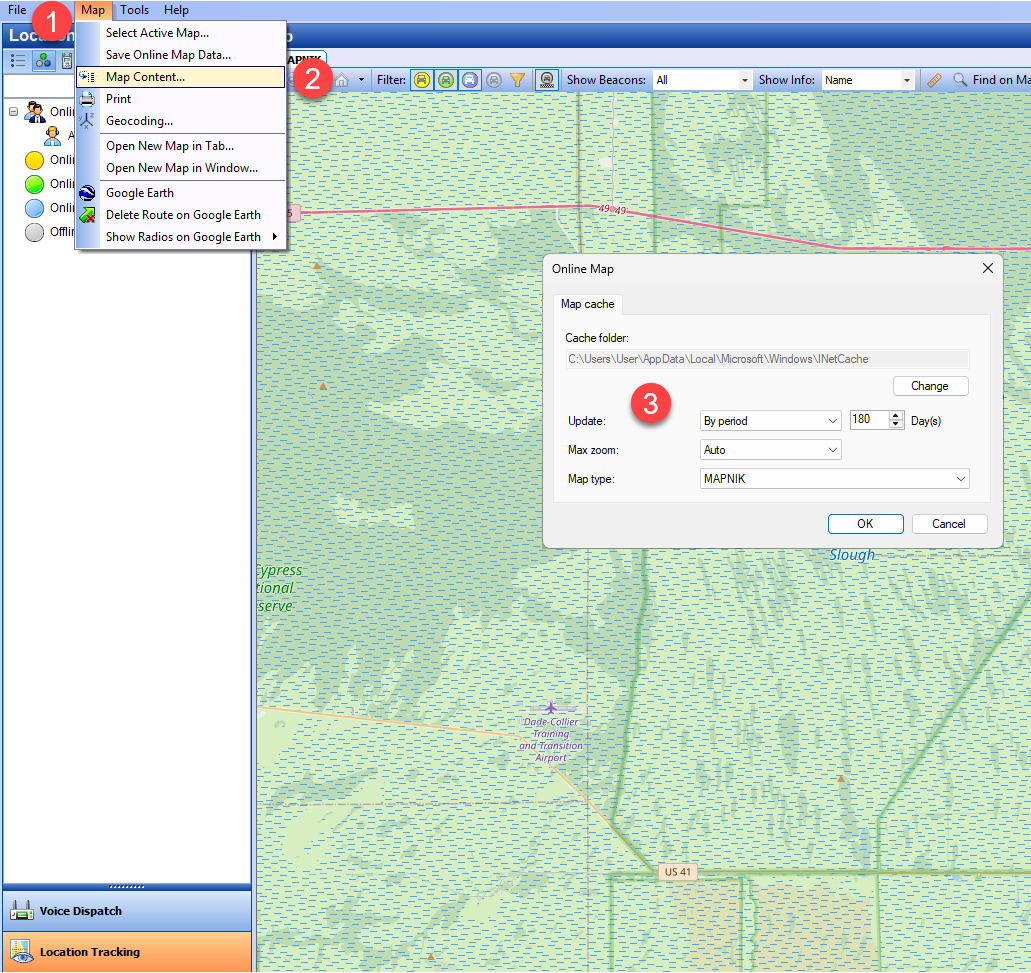
Default Cache Path
This is the location where the cache must be placed on each offline Console for MAPNIK map tiles:
Dispatch and Watch Console: %localappdata%\Microsoft\Windows\INetCache\TRBOnetMapCache\MAPNIK