TRBOnet can show detailed Location Trigger status messages for each radio. These statuses are hidden by default and can be used to diagnose why a radio is not reporting location data as expected.
How to View Location Trigger State
1. Open the TRBOnet Dispatch Console and navigate to .
2. In the Registered Radios list, right-click any column header and select , then drag the column from the Customization panel into the table header.
The current trigger status will now be displayed for each radio.
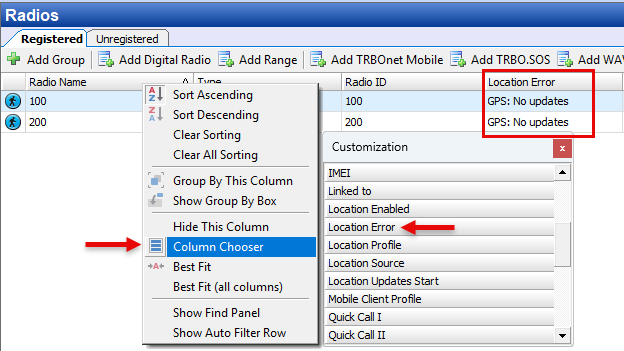
You can use column filtering, grouping, and sorting to quickly locate radios with non-empty Location Error values.
To sort by Location Error, hover over the Location Error column header and click the small triangle icon to sort.
To sort by Location Error, hover over the Location Error column header and click the small triangle icon to sort.
Location Trigger State Reference
| Status Message | Meaning | Recommended Action |
|---|---|---|
| The Provider is unable to provide required information | The radio cannot supply all requested location parameters (e.g., speed, direction, altitude). | Move the radio outdoors. Reduce trigger to Lat/Lon only. Additional parameters require more satellites. |
| No data from trigger | The radio has no GPS fix. | Move the radio outdoors and allow time for satellite acquisition. |
| Protocol element not supported | The trigger is requesting data that the radio model does not support. |
Do not request: • GPIO telemetry if no telemetry cable is connected • Indoor data from radios without Indoor positioning hardware |
| The operation has been canceled by the user | Trigger reset/change was issued but not completed. | Wait for completion. If status does not update, repeat trigger reset. |
| Periodic Trigger / Emergency Trigger / etc. | Indicates which trigger type is currently active. | No action required. |