LAN over Wi-Fi and Over-the-Air Option Board Configuration
The article was successfully sent to the email
Swift CPS 1.6 and later supports reading and writing Option Board configuration via LAN over Wi-Fi for MOTOTRBO Radios and via Over the Air.
Swift Option Board ST002 supports firmware upgrade and configuration.
Motorola GOB supports configuration only.
Motorola GOB supports configuration only.
LAN over Wi-Fi for MOTOTRBO
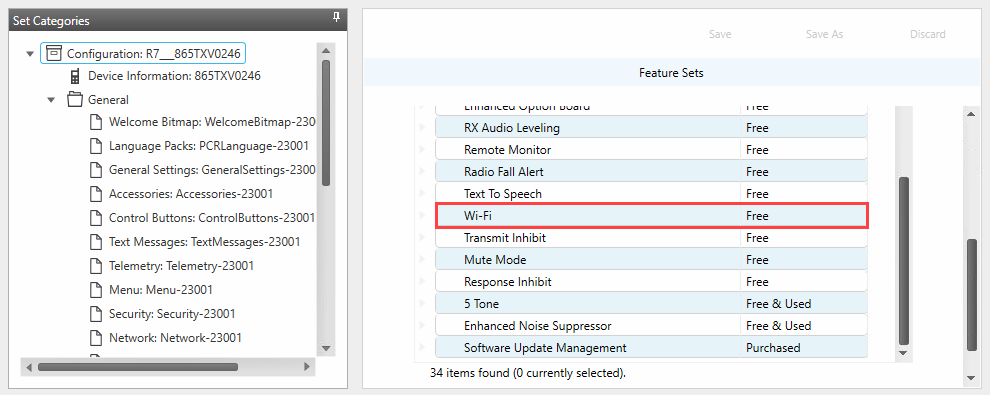
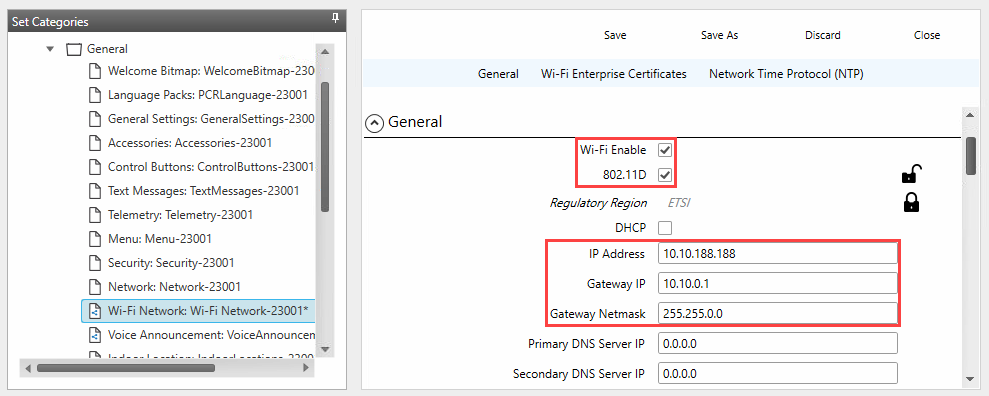
1. Ensure the subscriber Wi-Fi IP address is in the same subnet as the PC running Swift CPS.
Steps
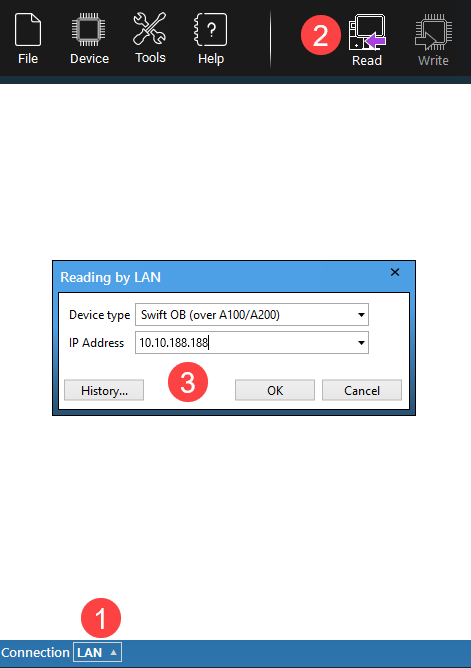
1. In Swift CPS select the connection method
2. Select
3. Select the device model, enter the Radio IP from the radio codeplug Network tab, and click
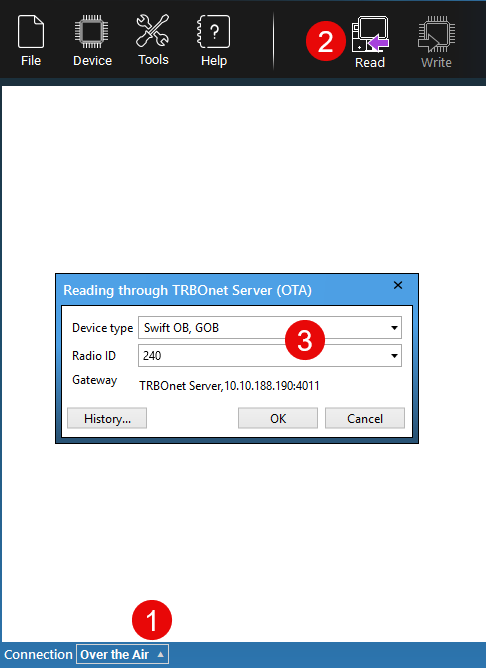
Over the Air
For Over the Air enable Swift Tracker v2 Service and Forward Data Service in TRBOnet Server Configurator
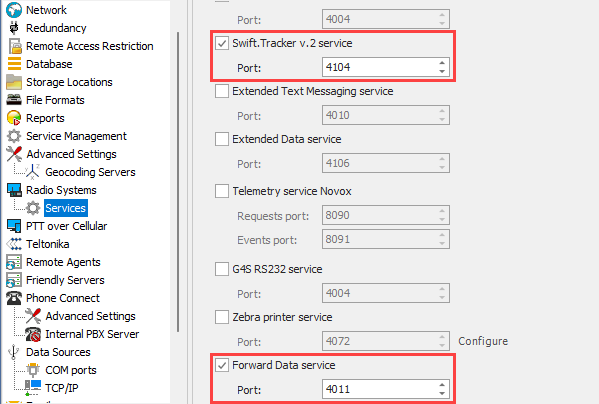
Steps
1. In Swift CPS → → tab
2.Set
3.Specify IP address of TRBOnet Server and Forward data service port (4011 by default)
4.Press to make sure, that connection is correct
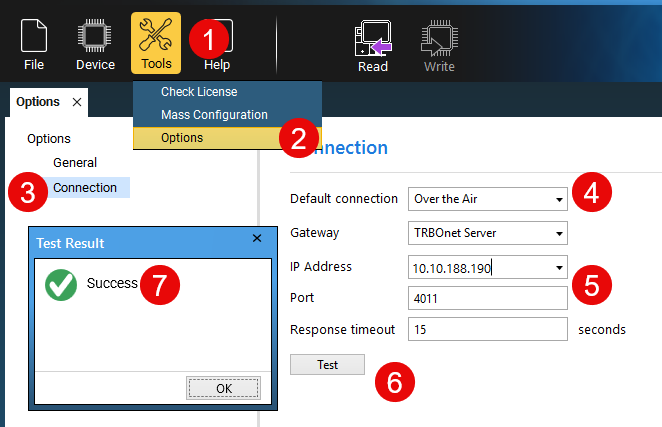
5. In Swift CPS select the connection method.
6. Select
7. Select the device model
8. Enter the TRBOnet Server IP address or the Swift Agent A200 IP address and enter the Radio ID