This article describes how to install FTDI drivers, configure the USB-3000 device, and integrate it with TRBOnet for voice processing.
Getting Started
1. Connect the USB-3000 device to the PC using a USB port.
2. Download from the Attachments section.
3. Extract the archive to a local folder on the PC.
Installing USB Serial Converter
1. Open .
2. Locate the unknown device.
3. Select and choose .
4. Navigate to the folder containing the extracted driver files.
5. Select as the target file.
6. When prompted, choose .
7. Install the driver only for .
After installation appears under USB devices. The device itself appears as .
Installing USB Serial COM Port
1. In , locate .
2. Select and choose .
3. Navigate to the folder with the extracted driver files.
4. Select as the target file.
5. When prompted, choose .
Configuring USB-3000 Serial Port Properties
1. Open .
2. Expand .
3. Right-click and select .
4. Open the tab.
5. Configure the parameters as shown in Screenshot 1.
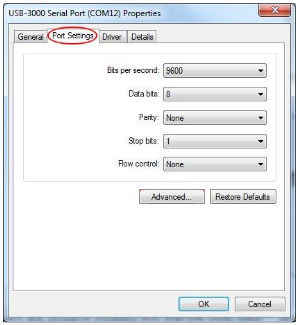
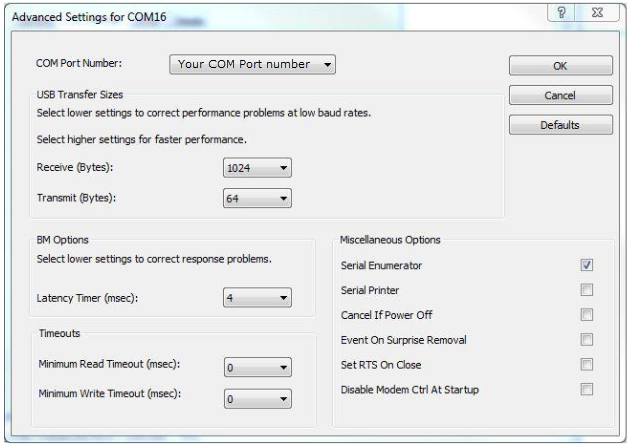
6. Click .
7. Configure the parameters as shown in Screenshot 2.
Configuring TRBOnet to Work with USB-3000
1. Stop the service.
2. Close the .
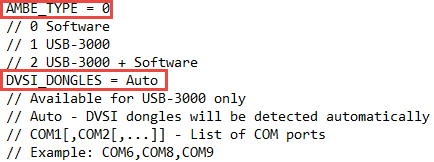
3. Open C:\ProgramData\Neocom Software\Audio3.config in a text editor.
4. Locate the following parameters:
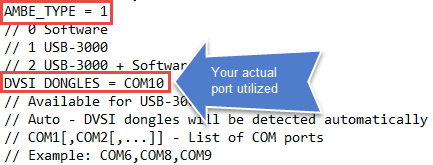
5. Change the values as follows:
6. Save the file.
7. Start the service.
Verification
1. Disconnect the USB-3000 device from the PC.
2. If voice audio is lost in TRBOnet, the configuration is correct.