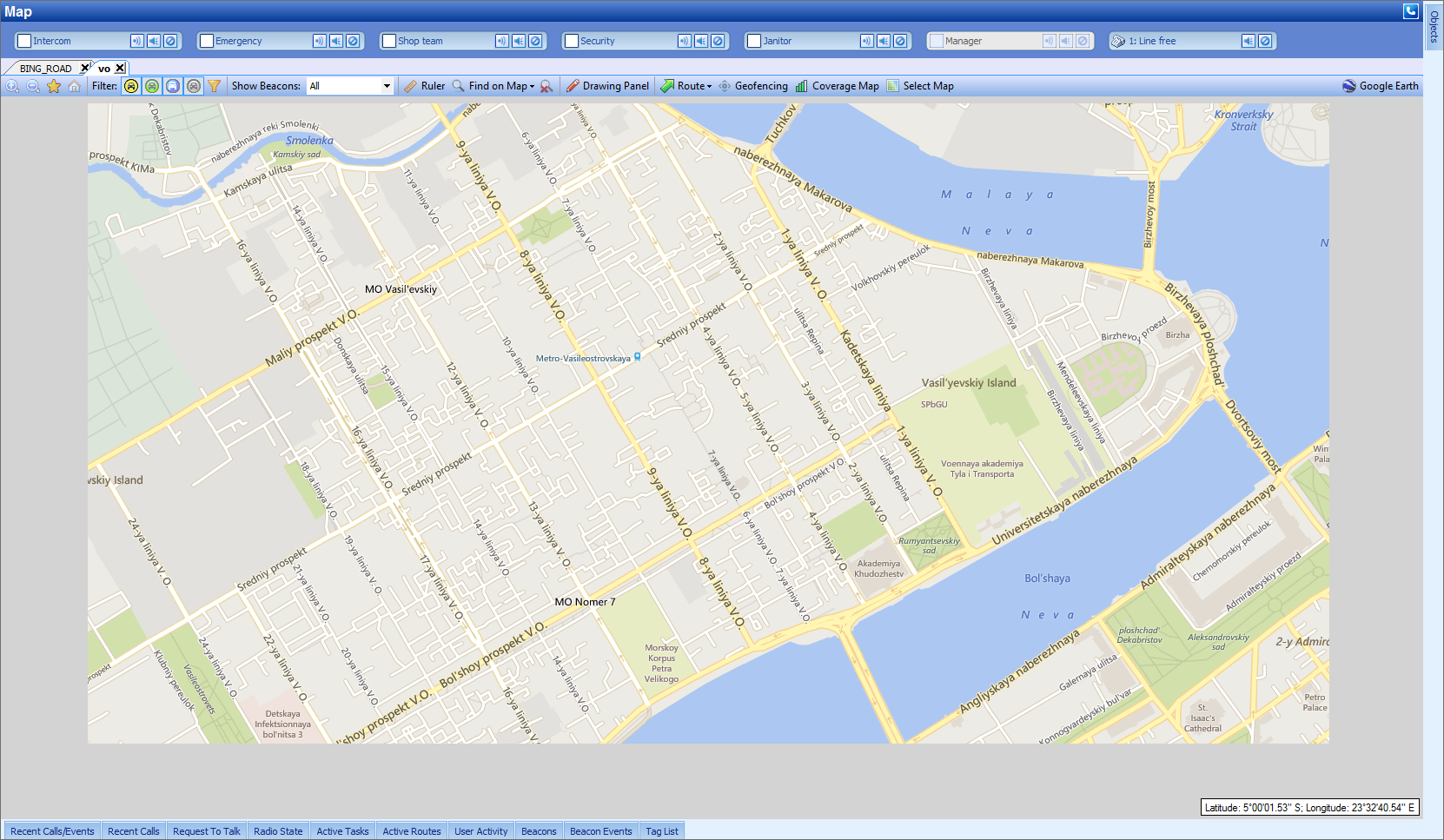
Image size recommendation:
• Supported image format: up to 32000×32000 px (ARGB bitmap, x64 only).
• Size formula (uncompressed ARGB bitmap): Height × Width × 4 = Size in bytes.
• Actual file size depends on compression. For example, a full-size PNG with uniform color, such as white, will be significantly smaller.
Territory size recommendation:
• Map calibration uses only three reference points.
• Coordinate accuracy decreases with larger territories and projections.
• Use maps covering areas no larger than a medium-sized city.
• Do not use maps of entire countries — six-point calibration would be required, which is not supported.
MapEdit Utility Location
6.0 and newer:
Enterprise: C:\Program Files\Neocom Software\TRBOnet Enterprise\Console
Plus: C:\Program Files\Neocom Software\TRBOnet Plus\Console
5.4 – 6.0:
Enterprise: C:\Program Files (x86)\Neocom Software\TRBOnet Enterprise\Console
Plus: C:\Program Files (x86)\Neocom Software\TRBOnet Plus\Console
4.8+ / Plus 5.0:
Enterprise: C:\Program Files (x86)\Neocom Software\TRBOnet Enterprise\Utility
Plus: C:\Program Files (x86)\Neocom Software\TRBOnet Plus\Utility
Older versions:
Enterprise: C:\Program Files (x86)\Neocom Software\TRBOnet Enterprise
Plus: C:\Program Files (x86)\Neocom Software\TRBOnet Plus
Creating an Offline Map
1. Launch .
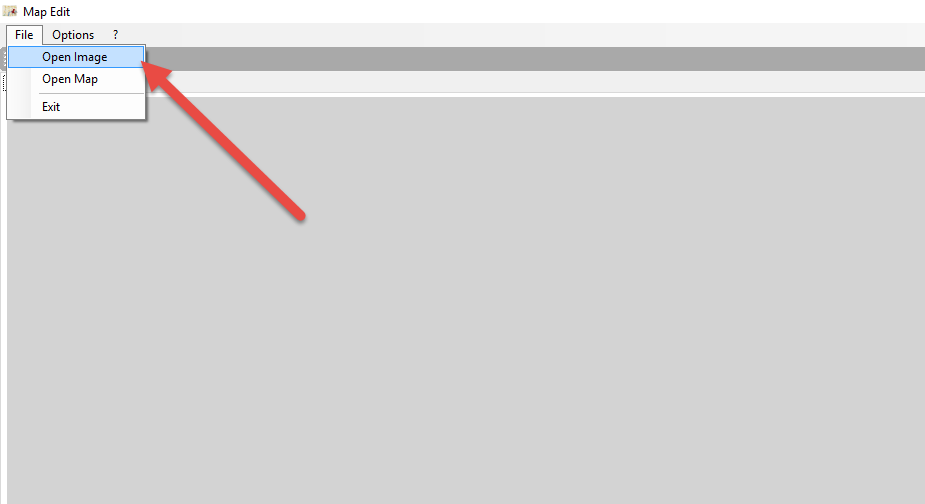
2. Click and select an image (*.bmp, *.jpg, *.png, *.gif, *.tiff).
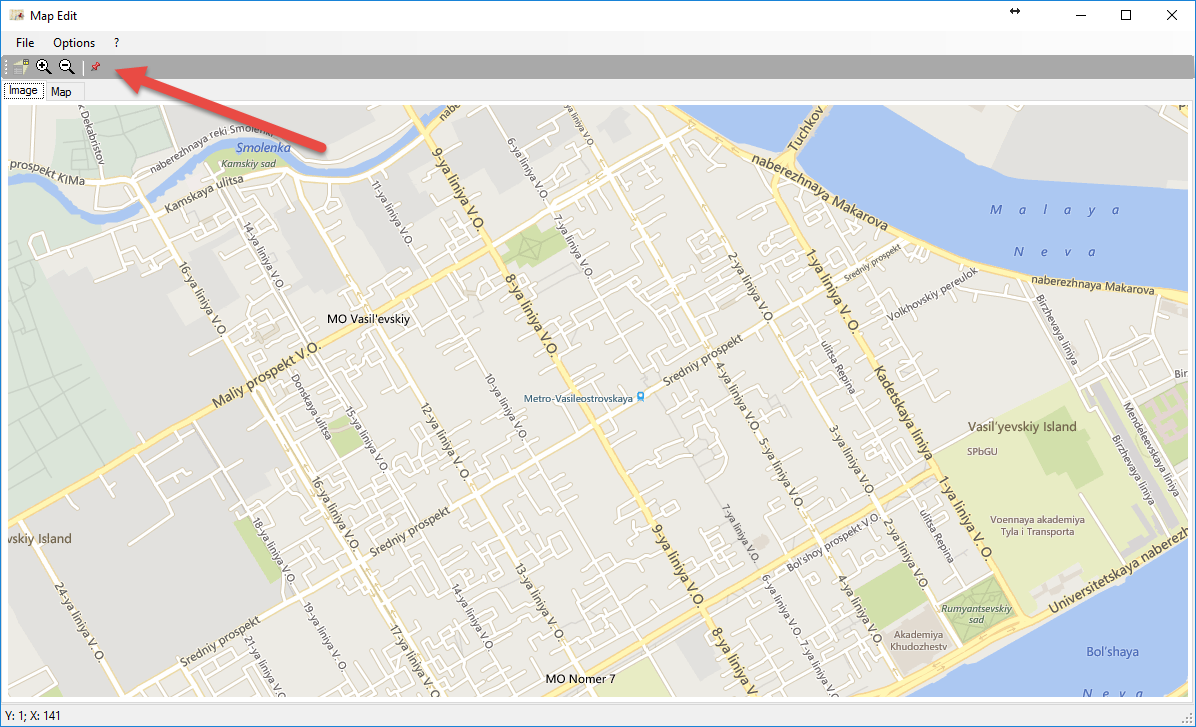
3. Click the icon to add geographic coordinates.
4. Use (Degrees, Minutes, Seconds) format.
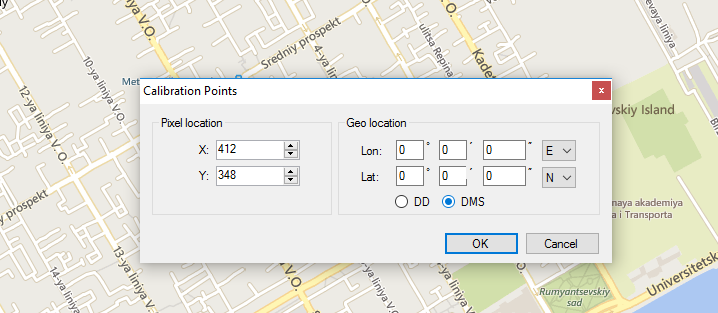
5. For best accuracy, use coordinates taken directly from subscriber radios in the field. Although coordinates may be taken from open map sources, the most accurate result is achieved by visiting the actual locations with a subscriber unit and recording its GPS position, then using those values as the three reference points.
6. When prompted, save the map file.
7. Click to generate the offline map.
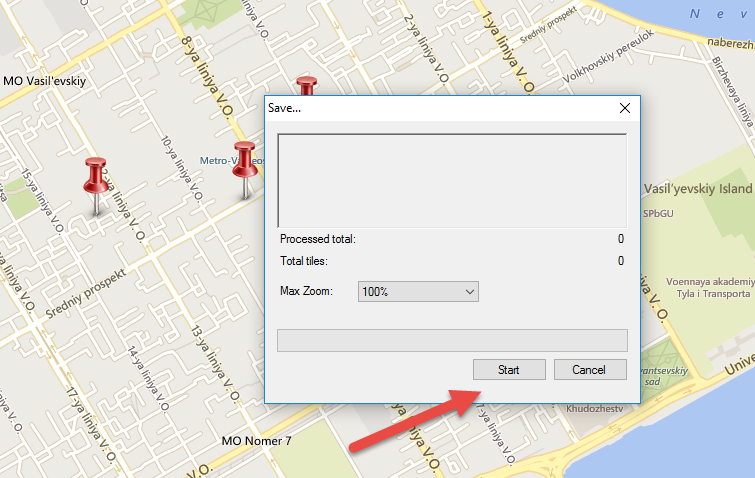
Adding an Offline Map to the Dispatch Console
Offline maps must be manually added to each Dispatch Console.
1. Open the Dispatch Console.
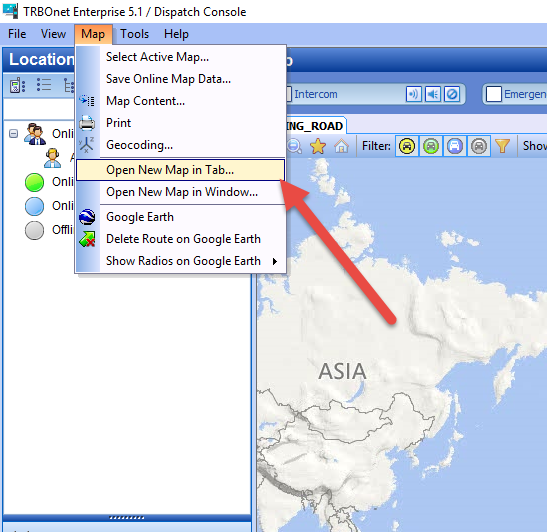
2. Navigate to .
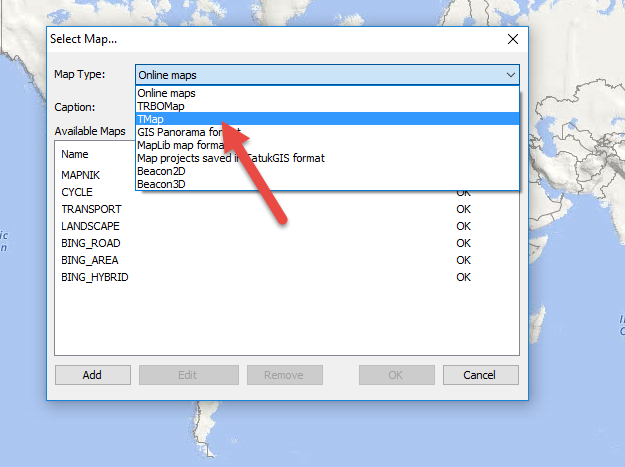
3. Select from the drop-down list.
4. Click .
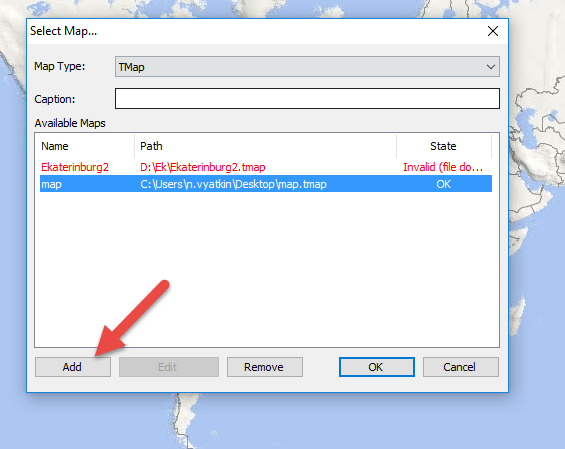
5. Choose the added map and press .
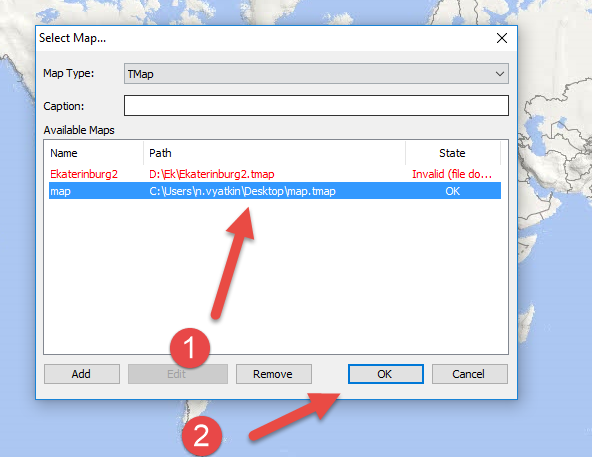
6. The map will now be available in the Dispatch Console.