TRBOnet Dispatch Console configuration can be stored in one of two modes:
• — all dispatchers on this computer share the same console configuration.
• — each dispatcher has a separate console configuration (useful where dispatchers rotate at the same workstation).
Configuration includes: layout (panes, tabs, PTT box size), audio settings, map view settings, etc.
Per Machine Mode
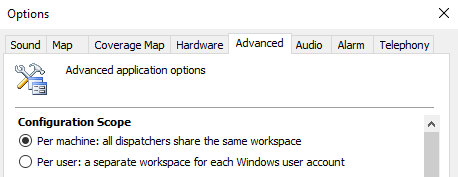
Configuration file location:
Enterprise: C:\ProgramData\Neocom Software\TRBOnet.Enterprise\
Plus: C:\ProgramData\Neocom Software\TRBOnet Plus\
Any dispatcher changing console layout will overwrite the shared configuration.
Per User Mode
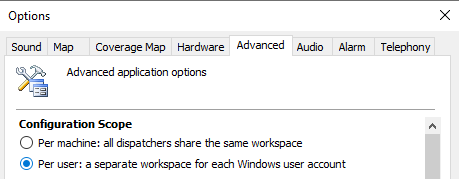
Configuration file location:
Enterprise: C:\Users\%USERNAME%\AppData\Roaming\Neocom Software\TRBOnet.Enterprise\
Plus: C:\Users\%USERNAME%\AppData\Roaming\Neocom Software\TRBOnet Plus\
Configuration Transfer Between Computers
If Per Machine mode is used:
1. Copy the file:
From: C:\ProgramData\Neocom Software\TRBOnet.Enterprise\
2. Paste it into the same directory on the target PC.
If Per User mode is used:
If Domain with Roaming Profiles is enabled:
Configuration will transfer automatically when a user logs in on another PC.
1. Log in on PC #1 → Create a test file in %appdata%.
2. Log out and log in on PC #2 with the same account.
3. If the file appears — Roaming Profiles are active.
If Roaming Profiles are NOT enabled (local accounts or non-roaming domain):
1. Log in each user once on each PC (to create the profile).
2.Copy folders: C:\Users\%USERNAME%\AppData\Roaming\Neocom Software\TRBOnet.Enterprise\
3. To corresponding user profiles on target PCs.
Using Different Console Configurations under the Same Windows Account
1. Create a Config File
• Open TRBOnet Console and set it up as needed.
• Go to .
• Save the config, for example: C:\TRBOnetConfigs\myconfig.config
2. Create a Shortcut with Config Parameter
• Right-click:
C:\Program Files\Neocom Software\TRBOnet Enterprise\Console\TRBOnet.Console.exe
• .
• Edit the Target field in the shortcut properties to:
"C:\Program Files\Neocom Software\TRBOnet Enterprise\Console\TRBOnet.Console.exe" /config "C:\TRBOnetConfigs\myconfig.config"
Choosing Configuration Mode
| Scenario | Recommended Mode | Reason |
|---|---|---|
| One dispatcher = one dedicated PC | All users share the same layout and settings | |
| Multiple dispatchers work in shifts on one PC and each needs their own layout | Settings are saved separately for each Windows user | |
| Consoles should look the same on all workstations | Single configuration → uniform appearance | |
| Dispatchers prefer individual layouts (different panels, sizes, maps) | Prevents overwriting each other's configuration | |
| Active Directory + Roaming Profiles in use | Configurations automatically transfer between PCs | |
| Local accounts with one shared configuration required | Easier to deploy and maintain |