Summary
Mobile Client QoS is enabled starting from version 2.1.252, and server-side QoS support is available from version 5.2.5. To prioritize voice traffic from the server to Mobile Clients, QoS must be configured in Windows or on a router. No QoS configuration is required on the Mobile Client side. This article describes how to enable DSCP 46 for server-to-Mobile Client UDP voice traffic (example port range 20000–30000 UDP) using Windows Policy-Based QoS.
Router configuration varies by manufacturer and is not covered here. Contact the responsible IT department for device-specific instructions.
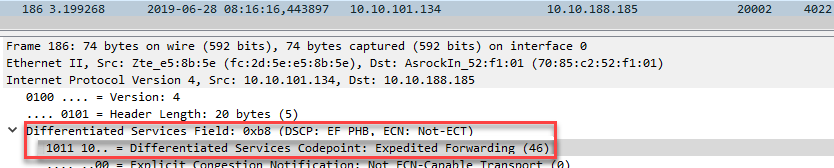
Steps
1. Open Local Group Policy Editor
Go to:
→ → →
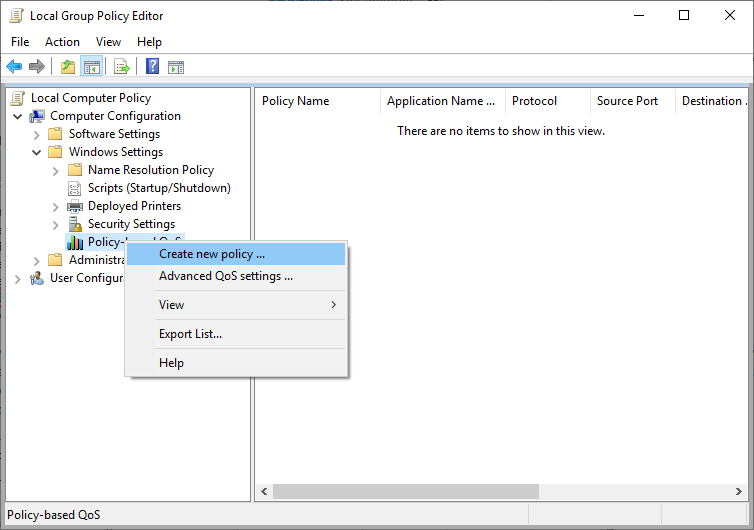
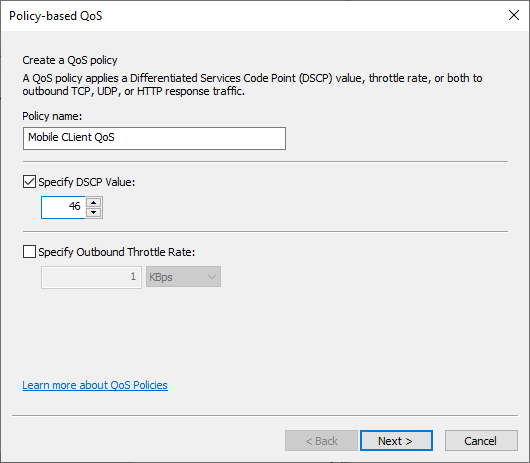
2. Create QoS Policy
Assign a policy name and set:
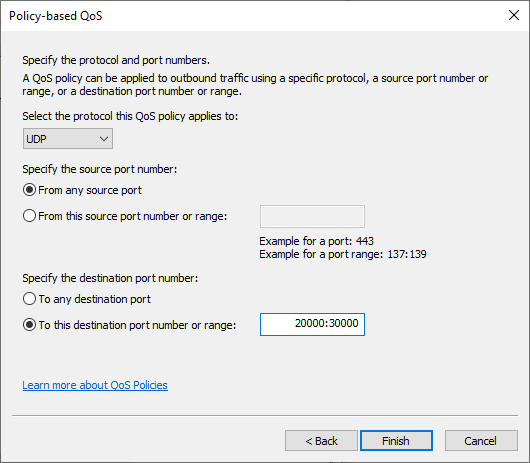
3. Define Application and Port Range
Create a rule for outgoing traffic to the Mobile Client VoIP port range, for example:
4. Apply Prioritization
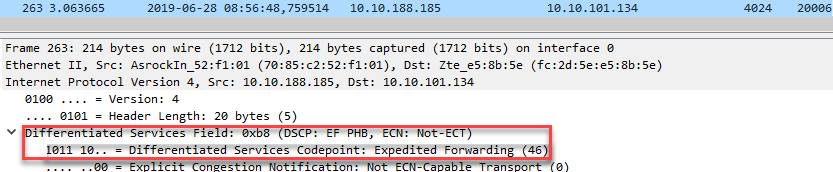
After policy creation, all outgoing traffic from the server to UDP ports 20000–30000 will be prioritized using DSCP 46.
Additional Information
More details on Windows QoS can be found in the MSDN article:
Using Policy-Based QoS to Enable and Manage WMM in Enterprise Wireless Deployments
The MSDN example shows configuration using User Policy.
User Policy may not work in some environments.
Using Computer Configuration is recommended, as it applies per machine and does not depend on domain membership.
User Policy may not work in some environments.
Using Computer Configuration is recommended, as it applies per machine and does not depend on domain membership.
Registry Configuration (Non-domain PCs)
To ensure QoS operates correctly on standalone Windows PCs:
1. Open the registry editor.
2. Navigate to:
HKEY_LOCAL_MACHINE → SYSTEM → CurrentControlSet → Services → Tcpip
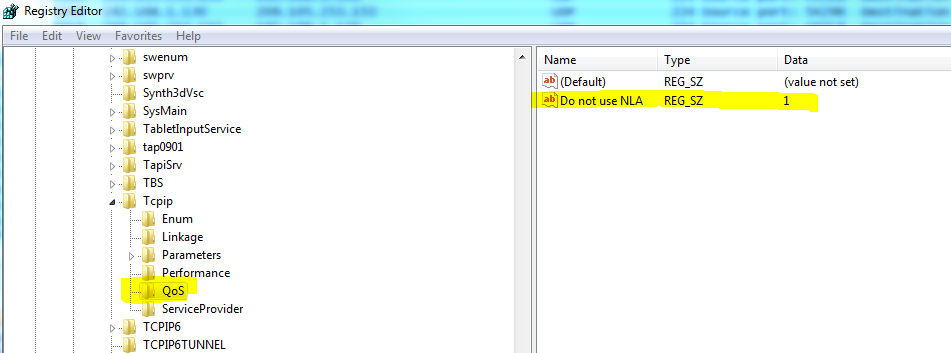
3. If the QoS key does not exist, create it.
4. Inside the QoS key create a String Value named:
Do not use NLA
Set the value to .
5. Reboot the PC to apply the changes.