Data Sources option allows receiving text data from external devices such as Fire alarm or PLC panels, RF readers, Sensors, etc. over RS-232 or TCP/IP.
Go to:
With an Alarm management license, you can use this data to trigger events or forward it to Dispatchers and Radio subscribers.
COM Ports
Allows configuring incoming data connection over RS-232.
COM ports option example
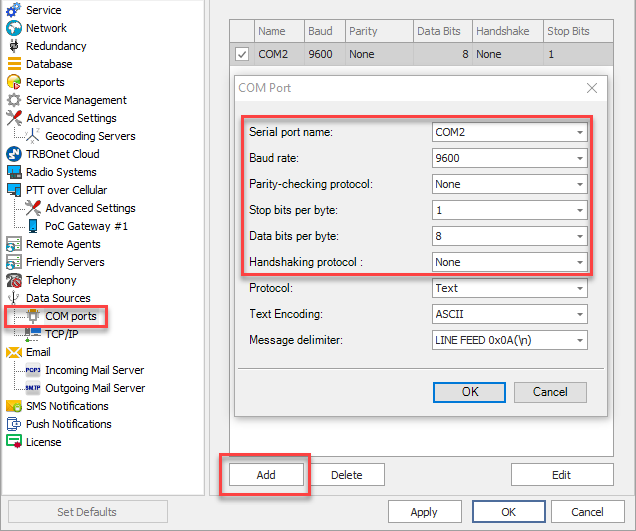
1. In this example the Device is connected as COM2 with default settings.
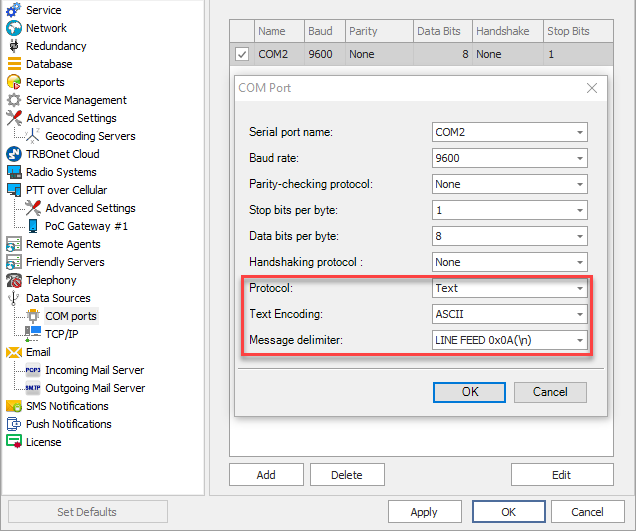
2. Parameters "Protocol", "Text Encoding" and "Message delimeter" should be configured according to the incoming message settings. In this example "ASCII" with delimeter LINE FEED 0x0A(\n) is used.
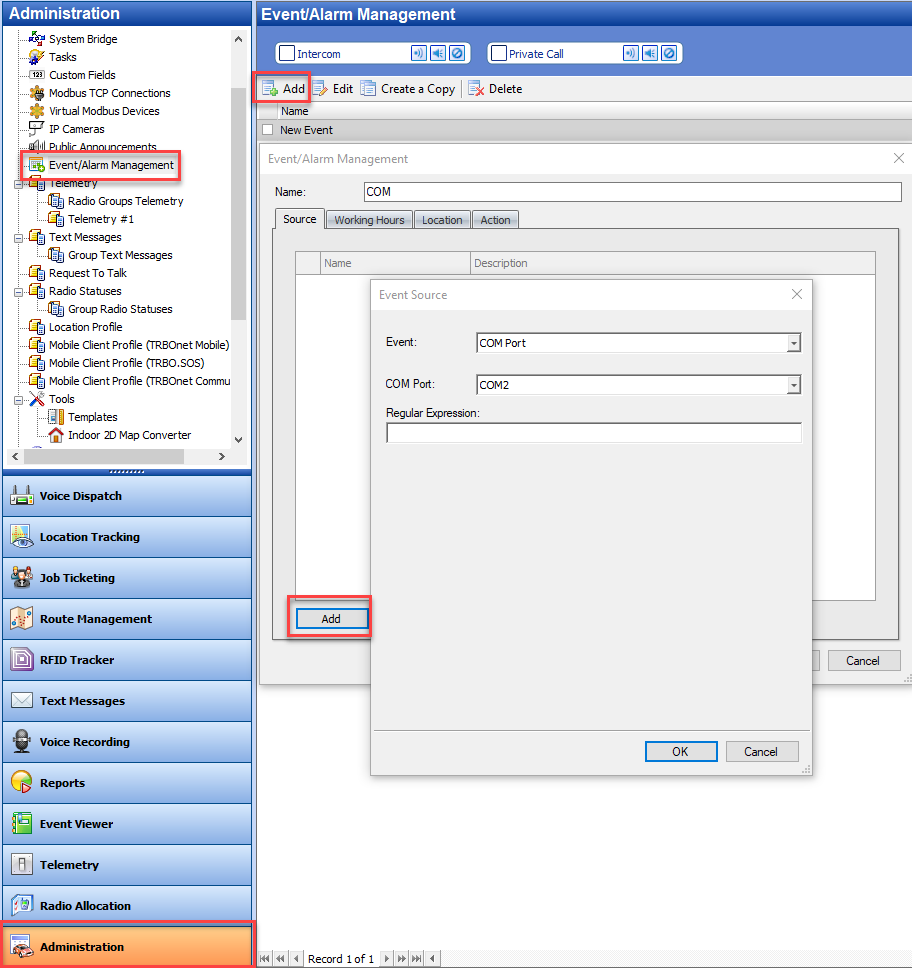
3. In , , add new rule. Choose as , Choose configured in (example COM2). If "Regular expression" field is empty - any incoming data triggers the rule. If you want to configure a specific expression to trigger the rule or use variables, fill in the field accordingly.
Information on Regular expressions syntax can be found on various Internet resources, such as:
https://en.wikipedia.org/wiki/Regular_expression
https://regex101.com/
https://en.wikipedia.org/wiki/Regular_expression
https://regex101.com/
4. In tab configure what output the incoming data should have. In this example, the incoming data will be shown as Dispatcher notification.
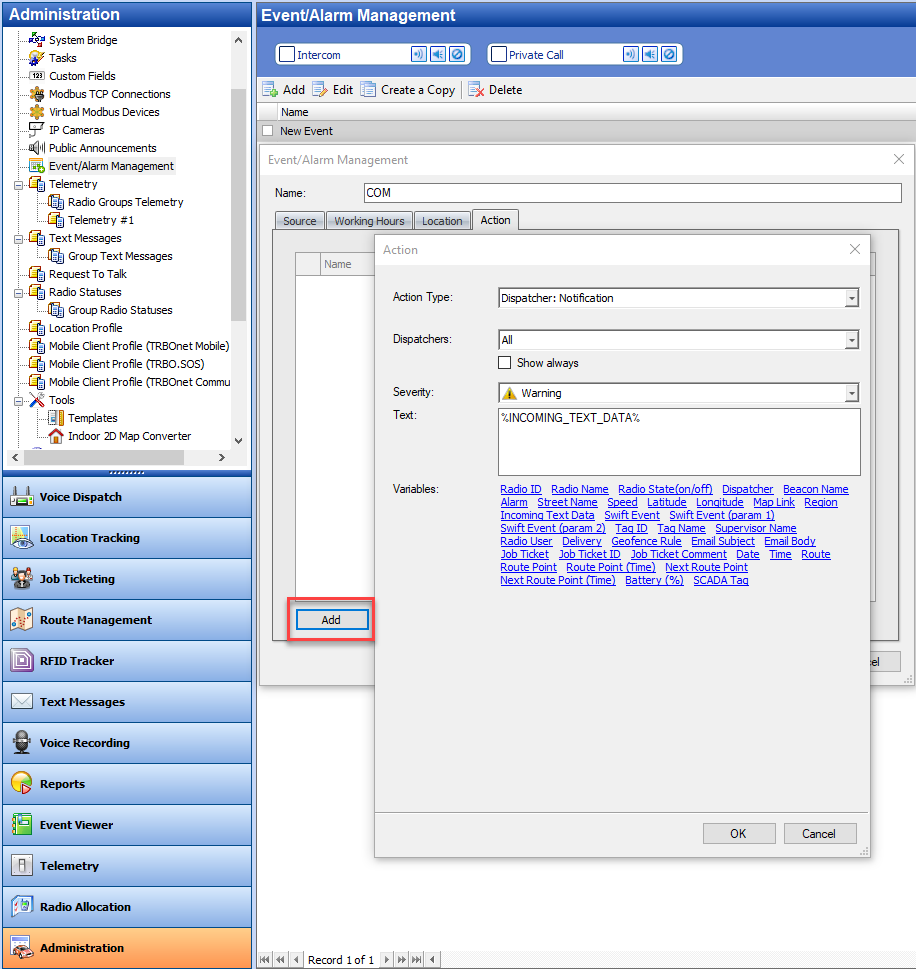
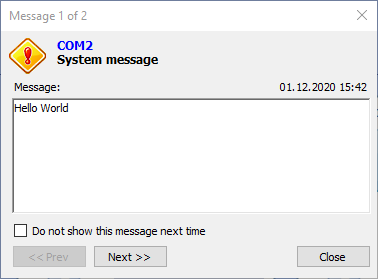
5. After rule activation, if the device sent text data "Hello World" it will lead to rule trigger and Dispatcher notification.
TCP/IP
Allows configuring incoming data connection over TCP/IP.
TCP/IP option example
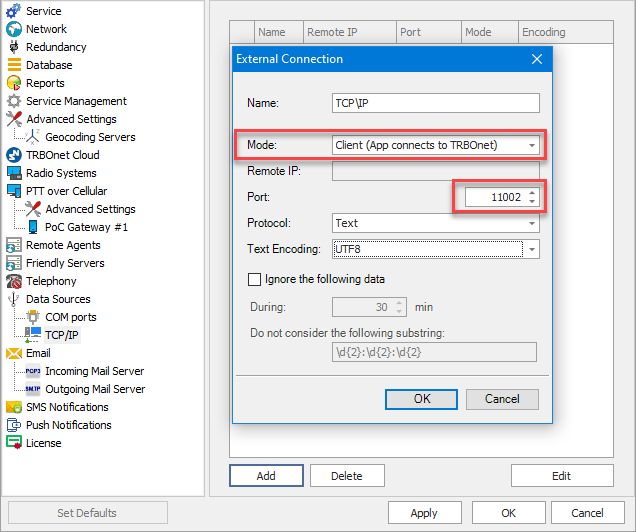
1. In this example the Device is connected over in "Client" mode (App connects to TRBOnet) over port 11002. Setting "Ignore the following data" allows ignoring specific data from incoming message.
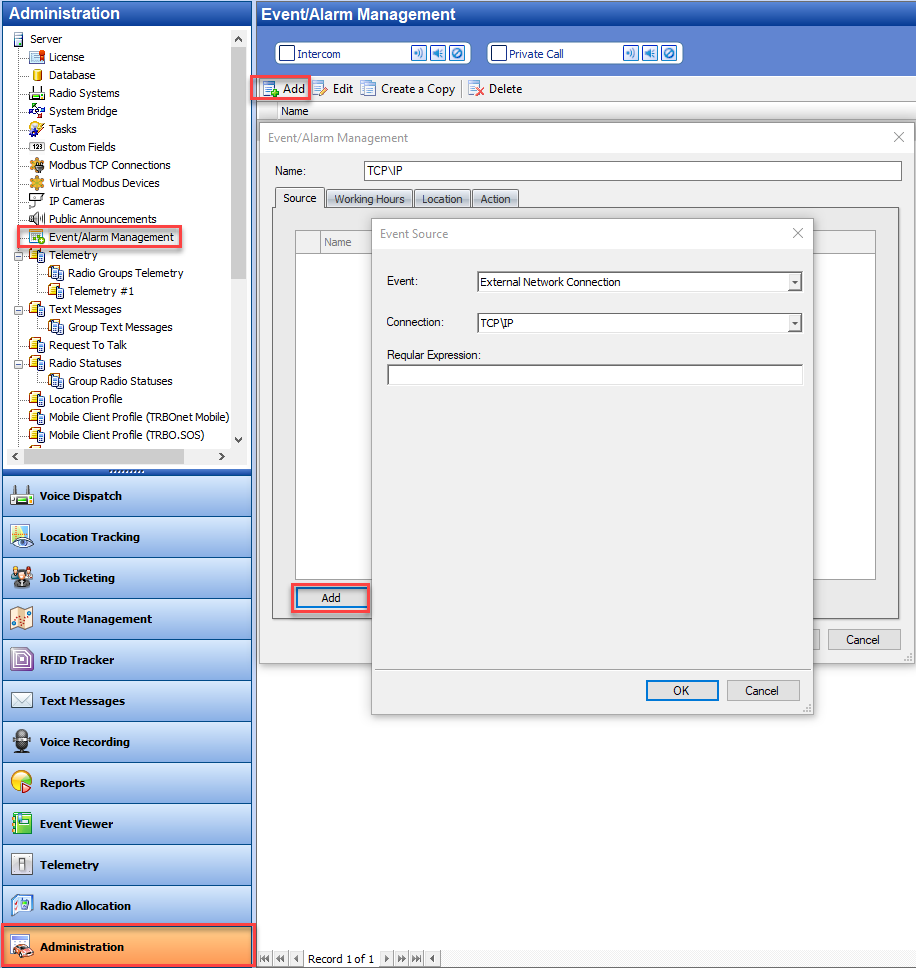
2. In , , add new rule. Choose as , Choose configured in (Example TCP\IP). If "Regular expression" field is empty - any incoming data triggers the rule. If you want to configure a specific expression to trigger the rule or use variables, fill in the field accordingly.
Information on Regular expressions syntax can be found on various Internet resources, such as:
https://en.wikipedia.org/wiki/Regular_expression
https://regex101.com/
https://en.wikipedia.org/wiki/Regular_expression
https://regex101.com/
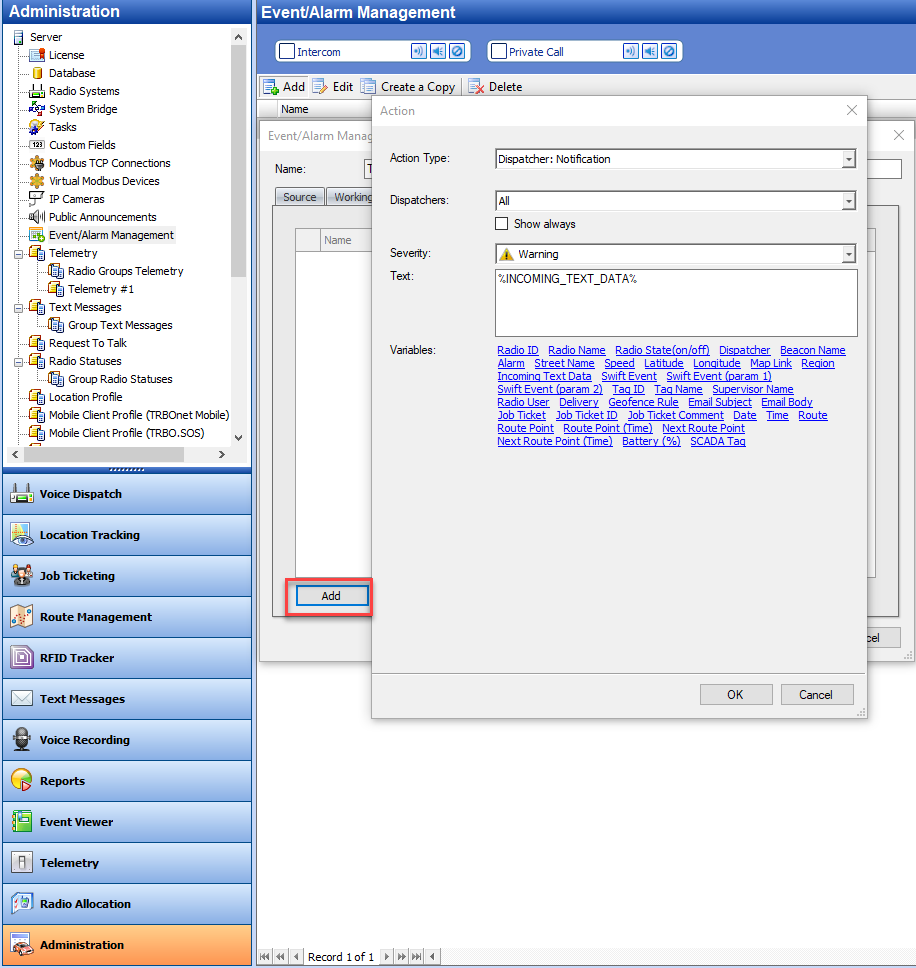
3. In tab configure what output should the incoming data have. In this example, the incoming data will be shown as Dispatcher notification.
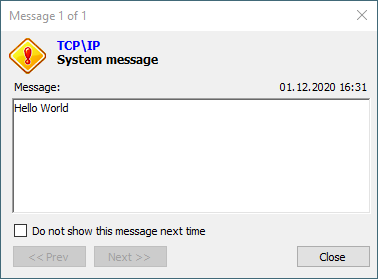
4. After rule activation, if the device sent text data "Hello World" it will lead to rule trigger and Dispatcher notification.
Tools for Emulation
COM Port Data Emulator (freeware) from AGG Software - to send data over COM port and TCP/IP (Manual).